
Korean registered patent
Registration No. 10-2869666
View Korean patent document ↗Explore the full technical guide, organized by topic. Select a title to read its explanation and illustrations.
We have named our individualized system Indivitech.
Indivitech is a development system that uses artificial intelligence to automatically create a wide range of IT systems according to users’ needs.
Until now, countless IT systems have been developed through collaboration between programmers and system designers, requiring significant time, effort, and resources. Because of the limitations of this traditional development process, integrated platforms—where every user accesses the same functions within a single system—have become widely used.
Representative examples include YouTube as a video broadcasting platform, KakaoTalk as a messaging service, and social media and communication platforms such as Facebook, X (formerly Twitter), and Instagram.
However, it is still difficult to find a truly individualized system that combines video broadcasting, chat and messaging, live streaming, ERP, and e-commerce while also being designed around the specific needs of each user or organization.
This is because these functions are highly complex, and specialized technical expertise is required to install, operate, and maintain such systems. As a result, individuals and small organizations have found it extremely difficult to build and operate their own integrated IT systems.
Today, we are living in the age of AI.
AI can write project proposals, create designs and music, and even produce films. Many sophisticated tasks that were once considered exclusively human professional domains can now be performed by AI.
Software development is one of the fields in which AI can demonstrate its greatest capabilities. However, because the objectives, development directions, and algorithmic structures of software vary widely, AI-generated programs do not always perfectly match the user’s intended purpose.
We believed that even highly complex software could be developed reliably by AI if a basic system architecture was established in advance and the development direction was clearly defined.
Based on this idea, we created Indivitech, an AI-powered development tool.
Indivitech is built on a pre-designed core architecture. Based on this architecture, the system consists of five templates. These templates are interconnected and operate together as one complete software system.
The role of AI is to modify these five templates according to the user’s objectives and requirements, connect them in the most efficient way, and optimize them to create a complete individualized system.
AI has already been integrated with Indivitech to develop and optimize a wide variety of software systems.
Indivitech is not simply a tool for creating a single program.
It represents a new approach to software development—one that enables anyone to use AI to build the IT system they need.
This document explains the overall architecture of Indivitech, the role of its Cloud Process kernel, and how new functions are implemented through HTML, platform gateway applications, and database processing.
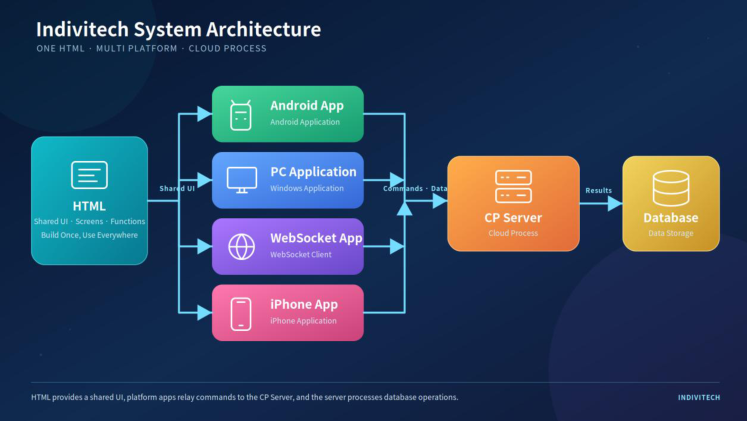
Figure 1. Indivitech System Architecture
Figure 1 presents the overall structure of the Indivitech system.
The interface that users actually see is built in HTML. Four intermediary applications display the HTML interface and connect it to the rest of the system:
• Android application • PC application • WebSocket application • iPhone application
These four applications serve as intermediary integration layers between the HTML interface and the CP Server. They receive information entered or selected by the user through the HTML interface and deliver it to the CP Server.
When users select photos, videos, or documents, or use device functions such as GPS and a camera, the intermediary application combines the device output with the user input and sends the combined information to the CP Server.
For example, when a user uploads a photo, the Android application allows the user to select it from the device gallery, while the PC application opens a file selection dialog.
The intermediary application transfers the selected file to the server according to a defined protocol. It then combines the file-transfer result with the information entered by the user and sends the combined data to the CP Server. The CP Server analyzes the received information, stores it in the database when necessary, and performs other essential system processing.
The CP, or Cloud Process, can be regarded as the core kernel of Indivitech.
Each Indivitech system has one dedicated CP. Therefore, if 100 Indivitech systems are operating, 100 independent CP instances run on the server as separate daemons.
This architecture is why Indivitech is described as an individualized system.
Rather than forcing every system into the same standardized form, each system is designed and operated differently according to its purpose and operational characteristics.
As shown in Figure 1, the components that change most when an Indivitech system is modified or extended are the front-end HTML interface and the back-end CP.
Consider a feature that adds a Write button to the main screen and opens a writing screen when the button is clicked.
After the user submits a post, the system must analyze its content, separate the information required for search, and store the results in the database.
The HTML layer implements the Write button and the writing screen. When the user submits the post, the intermediary application forwards the received data to the CP Server without separately analyzing it.
The CP Server analyzes the data, separates the required fields, and stores them in the database.
Therefore, even when a new function is developed, the primary areas that need modification are the HTML and CP layers. The Android, PC, WebSocket, and iPhone applications act as data-transfer gateways, so their existing structures can generally be reused.
By modifying the HTML interface and the CP processing logic and then designing a database that supports the required function, developers can create a wide variety of individualized systems.
We named this CP architecture Cloud Blockchain Technology and have completed the patent application and registration process for the related technology.
This architecture makes it possible to efficiently create applications with different purposes and functions. It also offers the major advantage of connecting the CPs of multiple applications and expanding them into a large integrated system.
For example, consider multiple companies that sell products and operate their own independent Indivitech systems.
Each company can operate its system independently. However, when the CPs of those systems are connected through a federated structure, they can collectively form an integrated system that functions like a large-scale online marketplace.
In this way, each company can independently own and manage its system and customer data while connecting with other systems when necessary to create a larger service ecosystem.
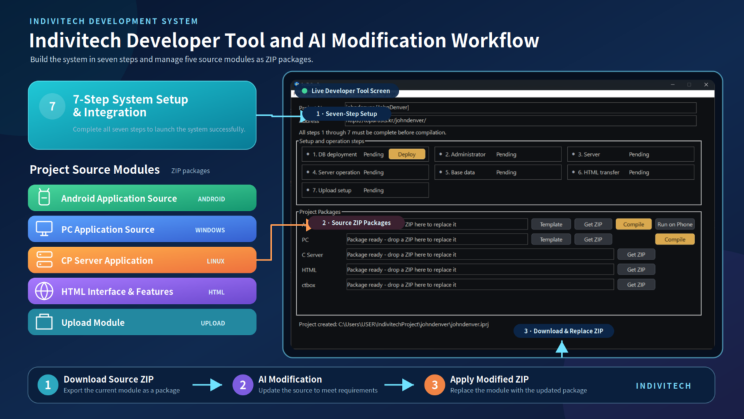
Figure 2. Indivitech developer tool architecture and AI modification workflow
Figure 2 illustrates the structure of the Indivitech developer tool and the workflow used to modify source code with AI. The tool combines system setup, source package management, compilation, deployment, and AI-assisted modification in a single interface.
The main screen of the Indivitech developer tool is divided into two areas. The upper area contains the seven steps required to create and connect a system. The lower area manages the exchange of source code between Indivitech and AI.
Before a project can operate, the server must contain the database information, server application, HTML content, and other resources associated with that project. The upper section of the main screen processes these requirements sequentially through seven setup and integration steps.
After all seven steps have been completed, the project is ready to run. It can then be used in three forms: an Android application, a Windows PC application, or a web application.
Platform How it is built and launched
Click Compile in the Android row to generate the APK. The Smartphone Run button next Android to Compile can install the APK on a connected smartphone and launch it. The smartphone must have Developer Mode enabled.
Click Compile in the PC row to generate an executable application, and then run the Windows PC resulting executable file.
Open the URL displayed in the address field at the top of the main screen in a web Web browser.
Instructions for enabling Developer Mode vary by device. Users can consult the smartphone documentation or ask an AI assistant for the procedure appropriate to their model.
Traditionally, each part of a software system had to be written manually in its respective programming language and development environment. Android applications were commonly developed in Java, Windows PC applications in C or C++, and the Linux-based CP server in C.
Writing and maintaining these programs manually requires considerable time and effort. Incorrect code can also introduce bugs, operational failures, and integration problems across the different parts of the system.
With the Indivitech developer tool, the developer does not need to edit every line of code manually. The source module that needs to be changed or extended is exported as a ZIP file and provided to AI together with the development requirements.
The AI reviews and modifies the source, then returns an updated ZIP file. The developer drags and drops that ZIP file into the corresponding area of the Indivitech main screen. Indivitech validates the package and replaces the appropriate project source module.
When the Android or Windows PC source has been changed, the developer clicks Compile to create a new executable package. Other modules are applied according to their individual deployment method.
Module Update procedure
Android Compile the updated source to generate a new APK.
Windows PC: Compile the updated source to generate a new executable application.
HTML Run Step 6, HTML Transfer, again to upload and refresh the HTML files.
Run Step 3, Server Deployment, again and then restart the server through Step 4, Server C Server Operation.
Ctbox Run Step 7, Upload Settings, again to apply the updated upload module.
The developer's practical workflow is straightforward. The developer explains the required feature or modification to AI, exports and provides the necessary source module as a ZIP package, receives the modified package, and imports it back into Indivitech.
Although this workflow greatly reduces the amount of manual coding, a basic understanding of computer architecture, databases, networking, and software structure remains essential. This knowledge allows the developer to define requirements correctly, select the right module, evaluate the AI-generated result, and operate the completed system safely.
Figure 3 shows the screen that appears when you launch the Indivitech tool and select “New Project” from the File menu.
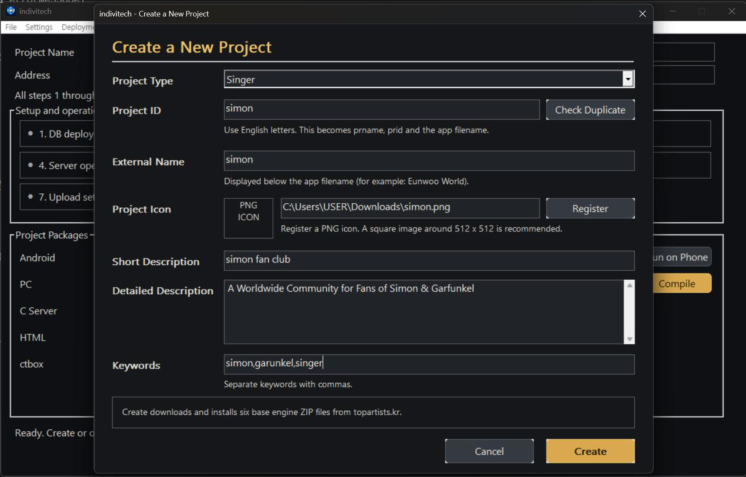
Figure 3. New Project Creation Screen
The most important item when creating a new project is the Project ID. The Project ID is a unique identifier used to distinguish one project from another. Therefore, duplicate Project IDs are not allowed.
After entering a Project ID, click the “Check Availability” button to verify whether the ID is available.
However, even if the Project ID is available at the time of the availability check, another user may create a project using the same ID before you complete the actual project creation process.
Therefore, when you finally click the “Create” button at the bottom of the screen, the system checks the Project ID again. If a project with the same ID has already been created, the new project will not be created.
The Project ID is not merely an identifier. It is a core value shared by many components and services within the project.
The database name is created based on the Project ID, and the Project ID is also used as part of the project's URL path.
For example, if the base URL is:
https://topartists.kr/
and the Project ID is:
jomeung
then the project's base URL becomes:
https://topartists.kr/jomeung/
The Project ID is also used as a unique identifier for various project-specific services, including video conferencing groups, live broadcasting groups, and other independent service groups.
For this reason, the Project ID should be chosen carefully when creating a project.
The Project Display Name refers to the name of the Android application or PC application that is displayed to users.
It is not the filename of the executable itself. Rather, it is the application name shown to users when the program is installed or executed.
The Project Display Name is stored as title in the database. In simple terms, it can be considered the Title of the project.
The Project Icon is an image that represents the project.
A 512 × 512 pixel icon can be created using AI or another image creation tool and then registered with the project.
The registered icon can later be used as the Android application icon, PC application icon, or other visual representation of the project.
The Short Description, Detailed Description, and Keywords are not directly related to the actual operation or functionality of the application.
Instead, this information is stored as search and informational metadata that can be used to search for and categorize systems created with Indivitech.
As the number of systems created with Indivitech grows, a separate portal application or portal service may be developed to allow users to search for and discover these systems.
At that point, the Short Description, Detailed Description, and Keywords can be used as important information for searching, categorizing, and presenting individual projects.
After entering all required information, click the “Create” button at the bottom of the New Project screen. Indivitech will then create the basic system for the new project using the information provided.
The initial system is created from a basic Singer Fan Club Template.
When a project is created, the Indivitech tool downloads the required template source files from the server and stores them in the corresponding project area on the development PC.
The downloaded templates include:
• Android application source code
• PC application source code
• C server source code
• HTML source code
• CTBOX-related source code and files
These downloaded source files become the Base Template for developing the new project.
After the project has been created, developers can use the Indivitech development tool and AI to modify and extend these source files, adding new functions, interfaces, and features according to the specific purpose of the project.
In other words, “New Project” does not create a fully completed application. Instead, it automatically prepares the basic development environment and the complete source-code structure required to begin developing a new system.
Once a project has been created, the basic operating environment of the system is established through a total of seven stages.
For an Indivitech system to operate properly, a dedicated C server for the individual project must be installed and running on the server. A database must also be created to store the data belonging to that project.
In addition, every system uploads media data, such as images and videos, as well as various document files to the server. Therefore, a certain amount of server storage space must be allocated to each project.
The user interface (UI) of an Indivitech system is basically implemented using HTML. The HTML contains bridges that connect the different operating environments, such as Android, PC, and Web, to the server. These bridges are used to exchange data with the server.
Therefore, transferring the developed HTML files to the server for use in the actual service is also included in the setup and operation process.
Database installation is the process of creating the database that will be used by the project.
When the “Install” button is clicked, a developer login dialog box appears. Enter the developer account information and complete the authentication process. The database required for the project will then be created.
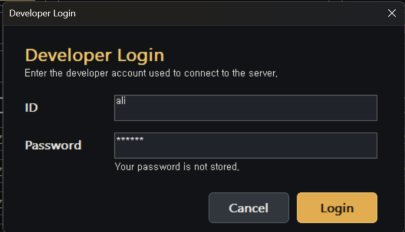
Figure 4. Developer Login
The developer login window appears whenever an individual setup stage is executed.
During program development, a large amount of data and source code is uploaded to the server. If incorrect or unauthorized data or source code is uploaded, it may cause problems with server operation.
For security purposes, developer authentication is therefore required whenever a new setup or operation stage is started.
Figure 5 shows the screen after Stage 1, Database Installation, has been completed.
Figure 5. Setup and Operation Screen After Completion of Stage 1
Once Stage 1, Database Installation, has been successfully completed, the next stage, Administrator Account Setup, becomes available.
After Stage 1 is completed, a “Setup” button automatically appears in the Stage 2 section. Click this button to create an administrator account.
When the “Setup” button for the administrator account is clicked, the Administrator Account Setup dialog box shown in Figure 6 appears.
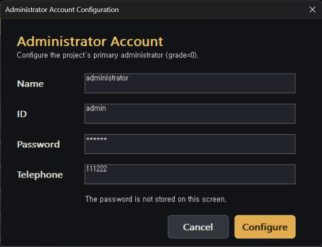
Figure 6. Administrator Account Setup
The administrator account is the highest-level administrative account used within the system.
Using this account, the administrator can perform various management operations, including registering, modifying, and deleting system information.
When developing an actual system, a separate administrator page can also be developed to provide these management functions. The highest-level account used for such administrative functions is the administrator account created in this stage.
After the administrator account has been registered, the screen shown in Figure 7 appears.
Figure 7. Setup and Operation Screen After Completion of Stage 2
Once Stage 2 has been completed, an “Install” button appears in the Server Installation section of Stage 3.
Clicking this button opens a dialog box where the information required to install the C server can be entered.
Figure 8 shows the Server Installation Settings dialog box.
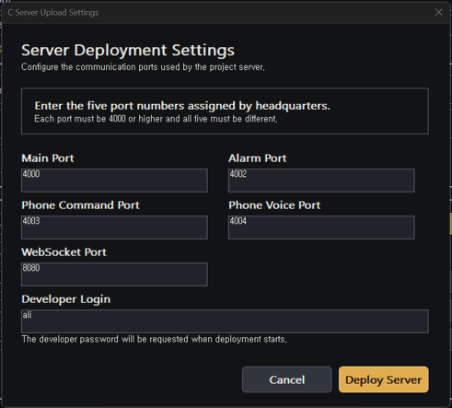
Figure 8. Server Installation Settings
An Indivitech project uses a total of five ports for system operation.
These port numbers are centrally managed by the Development Headquarters. Therefore, when setting up a new project, five port numbers must first be assigned by the Development Headquarters and entered into the corresponding fields.
After entering the port numbers, click the “Install Server” button. Before any source code is transferred to the server, a security inspection of the C server source code is performed.
Because the C server source code will be installed and executed directly on the server, it must first be checked for any code that could compromise server security.
As a general rule, Indivitech C server source code is not permitted to modify the server's hard disk without authorization or to connect to external networks other than specifically authorized networks.
In addition, if the source code attempts to access resources or system services outside the database and system services authorized for the project, the security inspection blocks the code and prevents the C server from being installed.
If the server cannot be installed because an issue is detected during the security inspection, the indicated source code must be reviewed and corrected.
If a blocked function is absolutely necessary because of a special requirement of the project, the relevant information can be submitted to the Development Headquarters for review. If the Development Headquarters determines that the function is both necessary and safe, the corresponding function can be added to the security policy's list of permitted operations.
In this way, Indivitech strictly manages access to server files, networks, databases, and other system resources to prevent unauthorized use.
Once the server has been successfully installed, an “Start” button appears in the Server Operation section, as shown in Figure 9.
Figure 9. Screen After Completion of Stage 3 Server Installation
On the screen shown in Figure 9, click the “Start” button to start the C server for the project.
Figure 10 shows the screen after the C server has been successfully started.
Figure 10. C Server Running
Once the server is running normally, a “Stop” button appears in the Server Operation section. Clicking this button stops the C server service for the project.
A program that runs continuously on a server and provides services is generally referred to as a daemon.
For example, just as a web server daemon such as Apache must be running to provide web services, each Indivitech project requires its own individualized C server daemon to be running for the project's server functions to operate properly.
If the project is no longer to be operated, click the “Stop” button to stop its C server service. Once the server service is stopped, program functions that depend on the C server will no longer operate normally.
Therefore, the Indivitech development tool is not simply a programming tool. It also functions as an integrated development and operation tool that manages the installation, startup, shutdown, and updating of project-specific servers.
If the C server source code is modified, the updated source code must be installed on the server again.
In this case, run “Update” again in the Server Installation stage. Once the new C server has been installed, the existing server changes to a stopped state. Click the “Start” button again to run the updated C server.
Once the C server is running normally, the process moves to the Basic Data Setup stage.
A “Setup” button appears in the Basic Data section shown in Figure 10. Click this button to create the basic data required by the project.
Figure 11 shows the Basic Data Setup dialog box that appears when the “Setup” button is clicked.
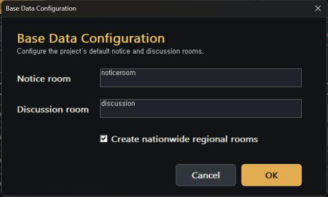
Figure 11. Basic Data Setup
The basic Indivitech system automatically creates two types of default spaces.
One is a space for notices and announcements, and the other is a general discussion space in which all users connected to the system can participate.
The data required for these two default spaces is created automatically.
Whether these default spaces are actually used in a particular project is determined by the system developer. Even if the default data has been created, there is no significant problem if the corresponding functions are not used.
There is also a “Create Nationwide Regional Rooms” checkbox. This option is optional.
For systems such as singer fan clubs, where fans from different regions across the country participate, it can be convenient to automatically create discussion rooms for each region. This function is provided for that purpose.
If regional rooms are not required for the project, simply clear this checkbox.
Once the Basic Data Setup has been completed, Stage 6, HTML Transfer, becomes active.
Figure 12 shows the HTML Transfer section in its active state.
Figure 12. HTML Transfer
Click the “Install” button in the HTML Transfer section to transfer the HTML source files registered for the current project to the server.
This HTML is an important component that provides common UI elements and functions across the various Indivitech operating environments, as well as the actual web service.
If the HTML has been modified using AI or the development tool during the development process, the updated HTML must be transferred to the server again.
In this case, run “Install” again in Stage 6, HTML Transfer, or use the corresponding update function provided for the current state to apply the latest HTML to the server.
Once Stage 6, HTML Transfer, has been completed, the final stage, Upload Settings, becomes active.
Figure 13 shows the Upload Settings section after Stage 6 has been completed.
Figure 13. Upload Settings
Upload Settings normally do not need to be changed for most projects.
However, if a particular project needs to store images, videos, documents, or other data in a server location other than the default storage area, this function can be used to change the upload path.
If a separate storage area is required, the Development Headquarters must first allocate the appropriate server space for the project. The upload path can then be configured according to the assigned information.
For a standard project, the default upload settings can be used without modification.
Click the “Install” button in this stage to complete the upload configuration. At this point, all seven setup and operation stages of the project are complete. Figure 14 shows the screen after all stages have been completed and the status indicators for each stage have become active.
Figure 14. Screen After Completion of All Setup and Operation Stages
When the system reaches the state shown in Figure 14, the project's basic system is active.
The basic website can now be accessed.
Open the web address displayed in the “Address” field at the top of the main Indivitech system screen. The system developed up to this point can then be viewed directly through a web browser.
From this point forward, development can continue by compiling the Android application and PC program, adding new functions, and modifying or extending existing features as required.
To use AI effectively, you must first provide it with the background information it needs to perform the work. The more accurate this information is, the more accurately the AI can complete its tasks.
To train the AI, you must first provide the following three source-code packages:
• Android source code
• C server source code
• HTML source code
You can download these files by clicking “Download ZIP” for each item in the Project Package window.
Attach the downloaded ZIP files to the AI message window and provide the following instructions.
[Instructions for the AI]
This system operates through the following structure: HTML communicates with the Android application through a bridge, and the Android application connects to the C server through a server socket.
HTML is responsible for displaying the user interface, while the C server is responsible for storing and managing data.
The Android application serves as an intermediary between HTML and the C server. It also handles essential device-specific functions, including selecting and uploading photos, videos, and documents; obtaining GPS information; scanning QR codes; and accessing other functions that must be provided by the device.
Please review the source code and verify that you understand this system structure.
Figure 15 shows an example of providing the basic system structure to the AI.
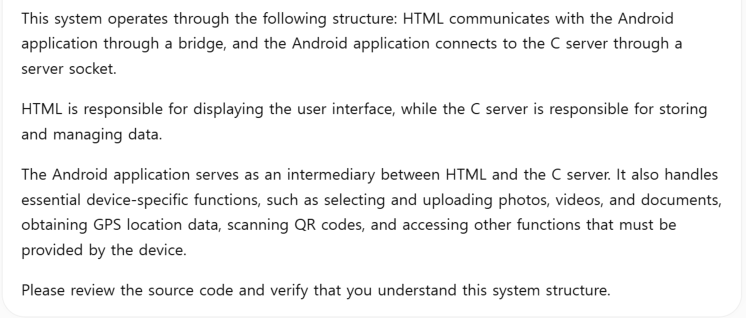
Figure 15. Providing the basic system structure to the AI
When asking the AI to perform development work, it is important to provide accurate information. The AI can modify the source code correctly only when it clearly understands the structure of the system.
Attach the Android source-code ZIP file, the C server source-code ZIP file, and the HTML source-code ZIP file. Then include the explanation above and send everything to the AI.
The AI’s response may vary. What matters is ensuring that the AI understands the system structure.
Our system uses Android, Windows PC, iPhone, and WebSocket components as intermediary systems.
The Android structure was explained to the AI in the previous section. The next step is to provide information about the Windows PC program.
Attach the PC source-code ZIP file and provide the following instructions.
[Instructions for the AI]
In addition to the Android application, this system also has a Windows PC program that operates as an intermediary system.
Please review the PC source code and verify its structure and role within the overall system.
Figure 16. Sending the PC source-code ZIP file to the AI
The AI’s response may vary. The important point is to ensure that it understands the role and structure of the PC program.
Once the AI understands this structure, it will recognize that the PC source code may also need to be modified when a new feature is added. For example, it may tell you to attach the PC ZIP file so that the corresponding PC functions can also be updated.
If you do not provide the PC source-code ZIP file, the AI may not know that a PC program exists and therefore cannot modify its source code.
Figure 17 shows an example of the AI recognizing and explaining the complete system structure. When the AI can correctly describe the entire structure, it means that the AI is ready to assist with the development of the Indivitech system.
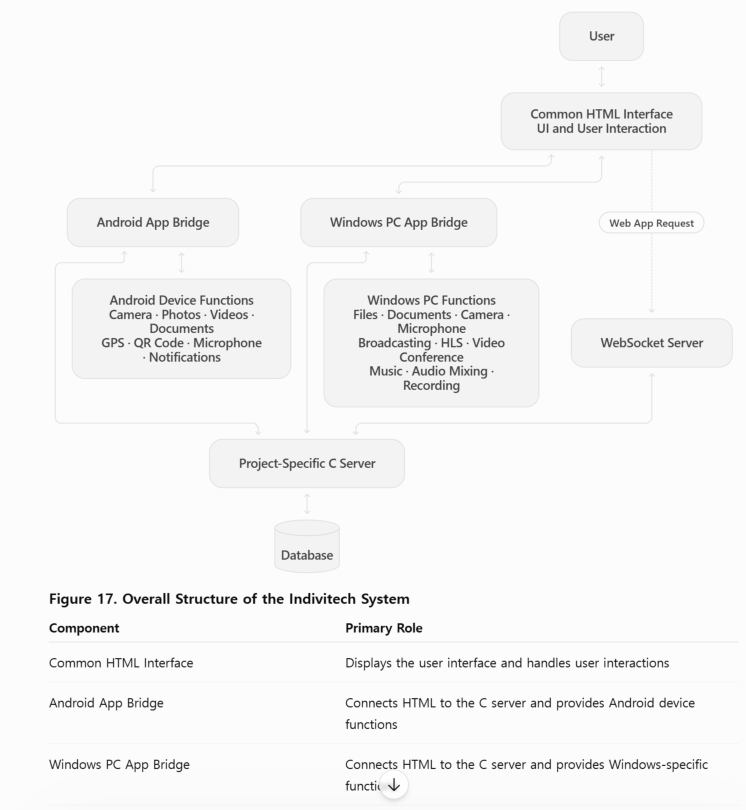
Figure 17. An AI response demonstrating its understanding of the Indivitech system structure
Our system can also operate on the web. In this manual, this is referred to as the web app.
When the system runs in a web browser, HTML connects to the WebSocket server. The WebSocket server then connects to the socket of the appropriate project-specific C server.
The WebSocket server is not included in the development tool.
All newly developed server-side features must be implemented in the C server. Communication with the C server is controlled using a grade value and a cmd number.
The bridge function used by HTML is viewinfo().
For example:
viewinfo("serverconnect</>grade=5&cmd=24&..."); When HTML sends this command, the Android application and Windows PC program forward the request to the C server.
The web app uses the same command format. Its request is sent through the WebSocket server, which automatically identifies the target project and forwards the request to the appropriate C server socket.
Therefore, when adding a new feature:
• The viewinfo() command must use serverconnect.
• The server grade must always be grade=5.
• The cmd value must be assigned an unused command number.
• The new server-side function must be implemented in grade5.c.
• The WebSocket source code does not need to be provided to or modified by the AI.
This structure must be clearly explained to the AI.
[Instructions for the AI]
When our program runs on the web, HTML connects to the WebSocket server. The WebSocket server then connects to the socket of the appropriate project-specific C server.
When adding a new feature, use the following structure:
viewinfo("serverconnect</>grade=5&cmd=command_number&..."); The WebSocket server automatically recognizes this request and forwards it to the appropriate C server. Therefore, you do not need to inspect or modify the WebSocket source code.
All new functions added to the C server must always use grade=5. Assign an unused cmd number to each new function and implement the corresponding processing code in grade5.c.
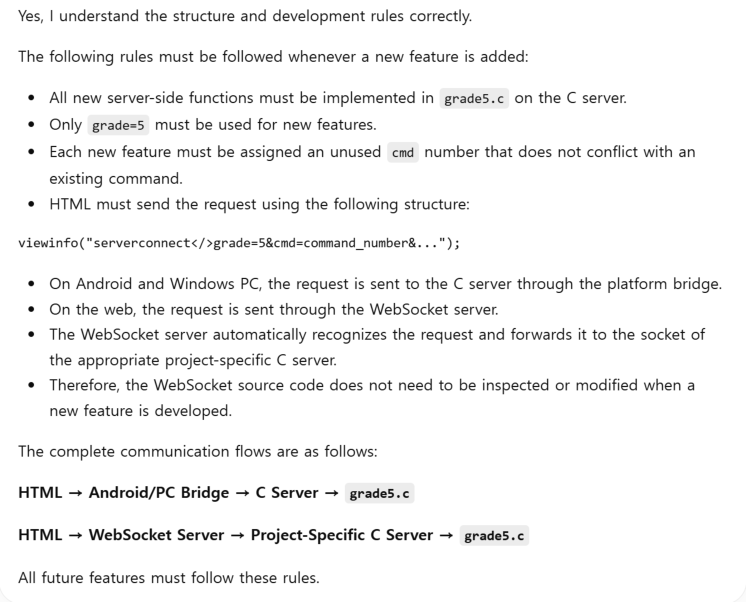
Figure 18 shows an example of the AI confirming that it understands the WebSocket structure.
[Image]
Figure 18. An AI response demonstrating its understanding of the WebSocket structure
After completing these steps, the AI will understand the overall structure of the Indivitech system and will be ready to assist with upgrading and expanding it.
The Indivitech system is also an AI-assisted development system. Instead of directly applying source code generated by a general-purpose AI, it analyzes the source code, adapts it to the structure of the Indivitech system, and then deploys it to the server.
In the previous section, the overall structure of the Indivitech system was explained to a general-purpose AI.
From this point forward, you can simply tell the AI what you want to modify and which new features you want to add to the system.
For example, if you want to change the design of the main screen, ask the AI as follows.
[Instructions for the AI]
Change the main screen to have a soft, natural green pastel design.
Which ZIP files do you need to make this change?
I have the Android source, PC source, C server source, and HTML source ZIP files.
The AI will respond with something similar to the following.
[AI Response]
Yes. Since this task only involves changing the screen design, I only need the HTML source ZIP file.
When attaching the HTML source ZIP file, you must clearly give the AI the following instructions.
[Request for the AI]
Modify the HTML files inside the attached HTML ZIP file.
Place the modified files back into the same folder structure as the original ZIP file. Then compress the complete modified HTML source into a ZIP file and give me the entire ZIP file. I need the complete ZIP file so that I can upgrade the project using the Indivitech tool.
This instruction is necessary because the modified files must remain inside the same folder structure as the original ZIP file.
The ZIP file provided by the AI can be dragged and dropped onto the corresponding item in the Indivitech tool. The new source code will then be installed in the project.
The Indivitech tool is not designed to accept individual HTML, C, or C++ files. It is designed to receive a complete ZIP file containing the entire source package. Therefore, even if only one file is modified, you must receive a complete ZIP file containing the entire updated source package.
When developing a new feature rather than simply changing the screen design, first explain the desired feature to the AI and ask which ZIP files are required.
For example, you can request a survey feature as follows.
[Request for the AI]
When the user clicks the “Take Survey” button on the main screen, display a survey form and allow the user to participate in the survey.
A database table is also required to store the survey questions and survey results.
In addition, create a feature on the “Settings” page that allows an administrator to register and manage the survey title, questions, and answer options.
Which ZIP files do you need to develop this feature?
The AI will respond with something similar to the following.
[AI Response]
Understood. To create the survey feature, a database table is required to store the survey information and participation results.
I will provide the required CREATE TABLE SQL statement. Run it using the Indivitech tool.
Also, attach the HTML source ZIP file and the C server source ZIP file. HTML will send requests using the serverconnect method. The new server function will be implemented in grade5.c on the C server using grade=5 and an unused cmd number.
If a new feature requires a separate database table, that table must be created first.
In the top menu of the Indivitech tool, select Database → SQL to execute an SQL statement.
Figure 19 shows the screen that appears when the SQL item is selected from the Database menu in the Indivitech tool.
New features frequently need to create and store data.
HTML is mainly responsible for the screens where users enter or search for data. Data entered through HTML is delivered to the C server through the Android application, Windows PC program, or WebSocket server.
The C server must store the received data in the database. Therefore, a storage structure for that data must be prepared first. This data storage structure is generally called a database table.
When a new feature requires storage for new data, you must ask the AI as follows.
[Instructions for the AI]
I need to store the data for this new feature.
Design an appropriate database table structure for this feature and provide the SQL statement required to create the table.
The AI will provide a suitable table structure and SQL statement for the feature.
Enter the SQL statement provided by the AI into the SQL Query field shown in Figure 19, and then click the Execute button. The SQL statement will be sent to the server, and the new table will be created in the database of the current project.
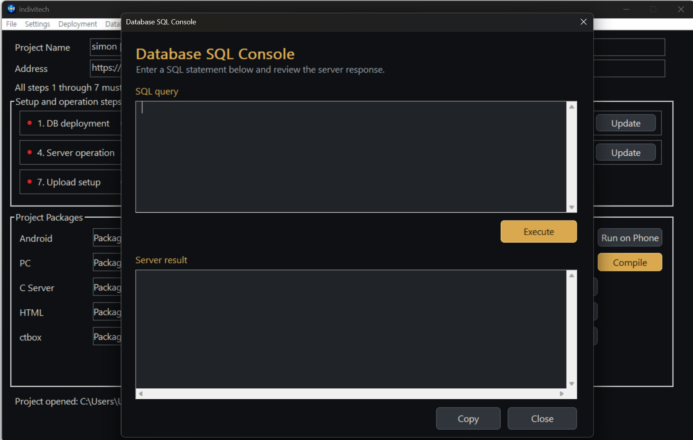
Figure 19. SQL Execution Screen
New features in the Indivitech system can generally be developed using the following structure:
HTML
→ viewinfo("serverconnect</>grade=5&cmd=command_number&...")
→ grade5.c on the C server
Most general features can be implemented by modifying only the following two source packages:
• HTML source ZIP file
• C server source ZIP file
If necessary, a new database table can also be added.
For these features, the Android application or Windows PC program can forward the existing serverconnect request to the C server. Therefore, the intermediary systems do not need to be modified.
If the HTML source is modified, update 6. HTML Transfer in the Indivitech tool.
If the C server source is modified, apply the changes in the following order:
1. Update 3. Server Deployment.
2. Restart the server through 4. Server Operation.
However, depending on the characteristics of the new feature, the Android source or PC source may also need to be modified.
For example, the following features may require modifications to the Android application or Windows PC program:
• Using the camera or microphone
• Selecting photos, videos, or documents
• Obtaining GPS location information
• Scanning QR codes
• Selecting Windows files
• Transmitting or recording broadcasts
• Video conferencing
• Functions that must be provided directly by the operating system
Therefore, before adding a new feature, it is recommended that you ask the AI the following questions.
[Instructions for the AI]
Which parts of the system must be modified to add this feature?
Can this feature be implemented by modifying only the HTML source and C server source?
If the Android source or PC source must also be modified, explain why and tell me which ZIP files are required.
Whenever possible, development should be completed by modifying only the HTML source and C server source. This avoids the need to recompile and redistribute the Android application or Windows PC program.
However, if the feature cannot be implemented using only HTML and the C server, all required source packages, including the Android source and PC source, must be modified.
In this case, upload the complete modified source ZIP files to the Indivitech tool. Then recompile and redistribute the Android application, Windows PC program, or any other required executable files.
The following three programs must be installed before using the Indivitech tool:
• Visual Studio 2022 or later
o The C++ development tools and C++ compiler must be installed.
• The latest version of Android Studio
• Inno Setup Compiler
All three programs are available free of charge. You can ask an AI for their official download links and installation instructions.
Indivitech uses the compilation engines provided by these three programs. Android applications are compiled using the Android Studio build engine. C servers and Windows PC programs are compiled using the Visual Studio C/C++ compiler. Inno Setup Compiler is used to create Windows installation packages.
You do not need to run Visual Studio, Android Studio, or Inno Setup Compiler manually. The Indivitech tool connects directly to their build engines and performs the required operations automatically.
When you click the Compile button in the Indivitech tool, the selected source code is compiled automatically, and files such as APK, AAB, and EXE files are generated.
To compile the Android application, click the Compile button in the Android section of the Project Package window.
On the screen shown in Figure 20, click the gold Compile button to compile the Android source code.
Figure 20. Android Package Screen
To install and run the compiled application directly on a smartphone, click the Run on Smartphone button after compilation is complete.
The smartphone’s Developer Options and USB Debugging must be enabled before using this function. You can ask an AI for instructions on how to enable Developer Options on your smartphone.
To change the Android application icon, select Settings → Android Icon and register the image you want to use as the application icon.
To change the application name displayed on the smartphone, select Settings → Android Name and enter the desired name.
To upload the compiled APK file to the server so users can download it, select Deployment → Android Deployment.
After the APK file has been uploaded, its download address is registered automatically. To view the registered download address, select Deployment → Android Address.
When an Android application is modified and released as an update, its version number must be higher than that of the previous release.
To increase the application version number, select Deployment → Register Android Version. After increasing the version number, compile and deploy the application again.
Users who have an earlier version of the application will then receive a notification informing them that a newer version is available and guiding them to download the update.
When uploading an Android application to the Google Play Store, an AAB file must be used instead of an APK file.
To create an AAB file, select Deployment → Create AAB.
After modifying the PC source code, click the Compile button in the PC section of the Project Package window.
Figure 21 shows the PC section of the Project Package window.
Figure 21. PC Package Screen
When compilation is complete, an executable file named after the project ID is generated, together with the DLL and EXE files required to run the program.
For example, if the project ID is hongja, the main executable file will be created in a form such as hongja.exe.
To change the PC program icon, select Settings → PC Icon and register the image you want to use.
Like the Android application, the PC program is managed using version numbers. When the PC program is modified, increase its version number and compile it again.
To distribute the PC program, you must create a Setup file that users can install on their computers.
Select Deployment → Create PC Setup File. The Setup file will be created automatically using Inno Setup Compiler. The completed Setup file will be saved on the PC and uploaded to the server.
To view the download address of the Setup file uploaded to the server, select Deployment → View PC File Address.
After all seven setup and operation steps have been completed, the web page is created automatically and can be accessed through its registered web address.
By default, the first HTML file opened when a user accesses the website is login.html.
If non-members should be allowed to view the main screen before logging in, change the initial file to main.html.
The initial file can be changed by selecting Settings → Initial File.
Only the following two files may be specified as the initial file:
• main.html
• index.html
Do not enter any other filename as the initial file.
Registration No. 10-2869666
View Korean patent document ↗Application No. 19/564,935
View U.S. application documents ↗기술 문서의 내용을 주제별로 정리했어. 제목을 누르면 설명과 그림이 펼쳐져.
우리는 개별화 시스템을 인디비텍(Indivitech)이라고 명명하였다.
인디비텍은 우리가 IT 환경에서 필요로 하는 다양한 시스템을 AI를 활용하여 자동으로 개발하는 시스템이다.
지금까지 수많은 IT 시스템은 프로그래머와 설계자가 협업하여 많은 시간과 노력을 들여 개발해 왔다. 이러한 개발 방식의 한계로 인해 현재는 하나의 플랫폼에서 모든 사용자가 동일한 기능을 이용하는 ‘통합 시스템’이 주로 사용되고 있다.
대표적인 통합 시스템으로는 동영상 방송 플랫폼인 유튜브, 채팅 서비스인 카카오톡, 소셜미디어 와 메신저 기능을 제공하는 페이스북·트위터·인스타그램 등이 있다.
그러나 동영상 방송과 채팅·메신저를 결합하고, 생방송과 ERP, 쇼핑몰 기능까지 포함하면서 사용 자의 요구에 맞게 디자인된 개별화 시스템은 아직 찾아보기 어렵다.
그 이유는 이러한 기능들이 매우 복잡할 뿐만 아니라, 시스템을 설치하고 운영하기 위해 전문적 인 기술이 필요하기 때문이다. 따라서 일반 개인이나 소규모 단체가 자신만의 통합 시스템을 구 축하고 운영하기는 매우 어려웠다.
지금은 AI 시대라고 한다. AI는 기획서를 작성하고, 디자인과 음악을 만들며, 심지어 영화까지 제 작한다. 과거에는 인간의 전문 영역으로 여겨졌던 수준 높은 작업들을 이제 AI가 수행하고 있다.
특히 프로그램 개발은 AI가 가장 잘할 수 있는 분야 중 하나다. 그러나 프로그램의 목적과 개발 방향, 알고리즘의 구조가 다양하기 때문에 AI가 제작한 프로그램이 사용자의 목적에 정확하게 부 합하지 못하는 한계도 여전히 존재한다.
우리는 기본 설계를 미리 갖추고 개발 방향을 정확하게 제시한다면, 매우 복잡한 프로그램도 AI 가 안정적으로 개발할 수 있다고 생각했다.
그래서 우리는 이러한 방식의 AI 개발 도구인 인디비텍을 만들었다.
인디비텍에는 사전에 설계된 기본 아키텍처가 있다. 이 아키텍처를 기반으로 총 5개의 템플릿이 구성되어 있으며, 각각의 템플릿이 서로 연결되어 하나의 완성된 프로그램으로 구동된다.
AI의 역할은 이 5개의 템플릿을 사용자의 목적과 요구에 맞게 수정하고, 서로 가장 효율적으로 연결하여 최적화된 개별화 시스템을 완성하는 것이다.
지금까지 AI는 인디비텍과 연동하여 다양한 프로그램을 개발하고 최적화해 왔다.
인디비텍은 단순히 프로그램 하나를 만드는 도구가 아니다.
누구나 자신에게 필요한 IT 시스템을 AI를 통해 직접 만들 수 있도록 하는 새로운 개발 방식이 다.
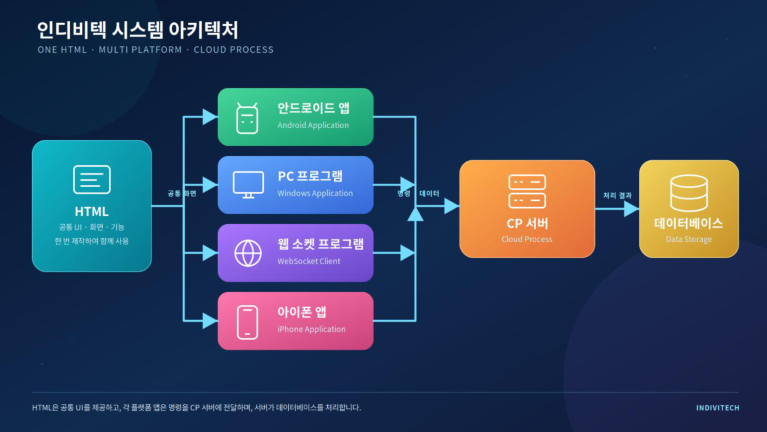
그림 1. 인디비텍 시스템 아키텍처
그림 1은 인디비텍 시스템의 전체 구조를 보여준다.
사용자가 실제로 보는 화면은 HTML로 구성된다. 이 HTML 화면을 실행하고 시스템과 연결하는 중간 프로그램은 다음과 같이 총 4개로 구성된다.
• 안드로이드 앱
• PC 프로그램
• 웹소켓 프로그램
• 아이폰 앱 이 4개의 프로그램은 HTML과 CP 서버를 연결하는 중간 연동 시스템이다. 사용자가 HTML 화면 에서 입력하거나 선택한 정보를 받아 CP 서버로 전달하는 역할을 한다.
사진, 동영상, 문서 등을 선택하거나 GPS·카메라와 같은 기기의 기능을 이용할 때는 해당 기기에 서 처리한 결과를 사용자 입력 정보와 결합하여 CP 서버로 전송한다.
예를 들어 사용자가 사진을 업로드한다고 가정해 보자. 안드로이드 앱에서는 갤러리를 통해 사진 을 선택하고, PC 프로그램에서는 파일 선택 대화상자를 통해 사진을 선택한다.
중간 프로그램은 선택된 파일을 정해진 프로토콜에 따라 서버로 전송한 후, 파일 전송 결과와 사 용자가 입력한 정보를 결합하여 CP 서버로 전달한다. CP 서버는 전달받은 정보를 분석하고, 필요 에 따라 데이터베이스에 저장하거나 중요한 시스템 처리를 수행한다.
인디비텍의 핵심 커널은 CP(Cloud Process)라고 할 수 있다.
하나의 인디비텍 시스템에는 해당 시스템을 담당하는 하나의 CP가 구성된다. 따라서 100개의 인 디비텍 시스템이 가동된다면 서버에는 100개의 CP가 각각 독립적인 데몬 형태로 실행된다.
이러한 구조 때문에 인디비텍을 ‘개별화 시스템’이라고 부른다.
모든 시스템이 동일한 형태로 통일되어 있는 것이 아니라, 각각의 시스템이 사용 목적과 운영 특성에 따라 서로 다르게 제작되고 구동되기 때문이다.
그림 1에서 볼 수 있듯이 인디비텍 시스템을 변경하거나 새로운 기능을 추가할 때 가장 많이 수정되는 부분은 앞단의 HTML 화면과 뒷단의 CP이다.
메인 화면에 ‘글쓰기’ 버튼을 만들고, 버튼을 클릭하면 글쓰기 화면이 나타나는 기능을 예로 들어 보자.
사용자가 글을 작성하면 시스템은 작성된 내용을 분석하고, 검색에 필요한 정보를 분리하여 데이 터베이스에 저장해야 한다.
이 과정에서 글쓰기 버튼과 글쓰기 화면을 구현하는 부분은 HTML이 담당한다. 사용자가 글을 작 성하여 전송하면 중간 프로그램은 전달받은 데이터를 별도로 분석하지 않고 CP 서버로 전송한 다.
CP 서버는 전달받은 데이터를 분석하고 필요한 항목을 분리하여 데이터베이스에 저장한다.
따라서 새로운 기능을 개발하더라도 주로 수정되는 영역은 HTML과 CP이다. 안드로이드 앱, PC 프로그램, 웹소켓 프로그램, 아이폰 앱과 같은 중간 시스템은 데이터를 전달하는 게이트웨이 역 할을 수행하므로 대부분 기존 구조를 그대로 사용할 수 있다.
결과적으로 화면을 담당하는 HTML과 데이터 처리를 담당하는 CP를 수정하고, 그 기능에 맞는 데이터베이스를 설계하면 매우 다양한 형태의 시스템을 개발할 수 있다.
우리는 이러한 CP 구조를 ‘클라우드 블록체인 기술’이라고 명명하였으며, 관련 기술에 대한 특허 출원과 등록을 완료하였다.
이 기술 구조를 활용하면 목적과 기능이 서로 다른 다양한 애플리케이션을 효율적으로 제작할 수 있다. 또한 여러 애플리케이션의 CP를 서로 연결하여 하나의 대규모 통합 시스템으로 확장할 수 있다는 장점이 있다.
예를 들어 상품을 판매하는 여러 기업이 각각 독립적인 인디비텍 시스템을 운영한다고 가정해 보자.
각 기업의 시스템은 독립적으로 운영되지만, 각 시스템의 CP를 하나의 연합 구조로 연결하면 전 체적으로는 대규모 쇼핑몰과 같은 통합 시스템을 구축할 수 있다.
즉, 개별 기업은 자신만의 시스템과 고객 데이터를 독립적으로 보유하면서도 필요에 따라 다른 시스템과 연동하여 더 큰 서비스 생태계를 형성할 수 있다.
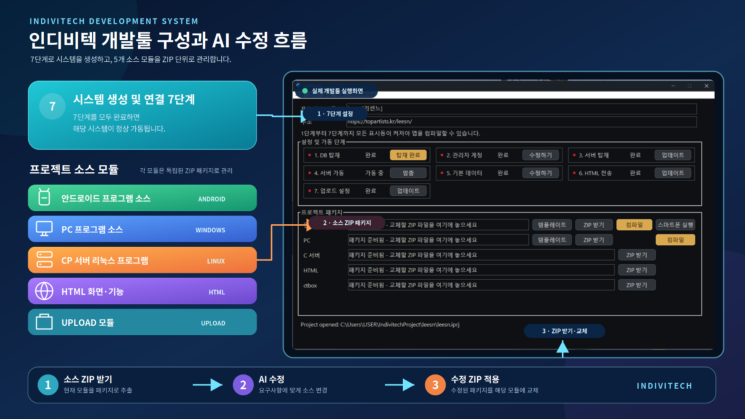
그림 2. 인디비텍 개발툴 구성과 AI 수정 흐름
그림 2는 인디비텍 개발툴의 전체 구성과 AI를 이용한 프로그램 수정 과정을 보여준다.
인디비텍 개발툴의 메인 화면은 크게 두 영역으로 나뉜다. 상단은 ‘시스템 생성 및 연결 7단계’ 영역이고, 하단은 AI와 소스 프로그램을 연계하는 ‘프로젝트 패키지’ 영역이다.
새로운 프로젝트를 만들려면 먼저 서버에 해당 프로젝트와 연결되는 데이터베이스 정보, 서버 프 로그램, HTML 데이터 등이 준비되어야 한다.
이러한 작업을 순서대로 처리하는 부분이 메인 화면 상단의 ‘시스템 생성 및 연결 7단계’이다.
1단계부터 7단계까지 모든 과정을 완료하면 기본적인 프로그램 구동 준비가 끝난다. 완성된 프로 그램은 다음 세 가지 방법으로 실행할 수 있다.
• 안드로이드 프로그램
• PC 프로그램
• 웹 프로그램 안드로이드 프로그램과 PC 프로그램은 메인 화면에서 해당 항목의 ‘컴파일’ 버튼을 클릭하여 실 행 파일을 만든 후 구동할 수 있다.
안드로이드 프로그램은 컴파일 버튼 옆에 있는 ‘스마트폰 실행’ 버튼을 이용하여 APK 파일을 스 마트폰에 설치하고 바로 실행할 수도 있다. 이 기능을 사용하려면 스마트폰이 개발자 모드로 설 정되어 있어야 한다.
스마트폰을 개발자 모드로 설정하는 방법은 별도의 안내 문서를 참고하거나 AI의 도움을 받을 수 있다.
웹 프로그램은 메인 화면 상단의 주소 입력창에 표시된 URL을 웹 브라우저에 입력하여 실행한 다.
과거에는 프로그램을 만들기 위해 각 개발 도구에서 프로그래밍 언어로 직접 코딩해야 했다.
안드로이드 프로그램은 일반적으로 자바(Java), PC 프로그램은 C 또는 C++, 리눅스 서버에서 동 작하는 CP 프로그램은 리눅스 기반의 C 언어로 개발해야 했다.
프로그래밍 언어를 이용하여 프로그램을 직접 작성하려면 많은 시간과 노력이 필요하다. 또한 잘 못된 코드로 인해 각종 버그와 오류가 발생하기도 한다.
인디비텍 개발툴에서는 개발자가 모든 코드를 직접 작성하지 않는다.
개발자가 수정하거나 새롭게 만들고자 하는 부분의 소스를 ZIP 파일로 묶어 AI에 전달하면, AI가 해당 소스를 분석하고 수정한 후 다시 ZIP 파일로 제공한다.
개발자는 AI가 수정한 ZIP 파일을 인디비텍 메인 화면의 해당 영역에 드래그 앤 드롭하면 된다.
인디비텍은 ZIP 파일을 확인한 후 기존 소스 모듈을 수정된 소스로 교체한다.
이것으로 기본적인 프로그램 수정 작업은 완료된다.
안드로이드 프로그램이나 PC 프로그램의 소스가 수정된 경우에는 다시 컴파일하여 새로운 실행 파일을 만든다. 나머지 모듈은 각 프로그램의 특성에 맞는 방법으로 업데이트한다.
각 모듈은 다음과 같은 방법으로 업데이트한다.
• 안드로이드 프로그램 수정된 ZIP 파일을 적용한 후 ‘컴파일’ 버튼을 눌러 새로운 APK파일을 만든다.
• PC 프로그램 수정된 ZIP 파일을 적용한 후 ‘컴파일’ 버튼을 눌러 새로운 PC 실행 파일을 만든다.
• HTML 수정된 ZIP 파일을 적용한 후 상단의 ‘6단계 HTML 전송’을 다시 실행하여 서버의 HTML 파일을 갱신한다.
• C 서버(CP 서버) 수정된 ZIP 파일을 적용한 후 ‘3단계 서버 탑재’를 다시 실행한다. 이후‘4단계 서버 가동’을 재실행하여 수정된 서버 프로그램을 적용한다.
• ctbox 업로드 모듈 수정된 ZIP 파일을 적용한 후 ‘7단계 업로드 설정’을 다시 실행하여서버에 반영한다.
인디비텍을 이용할 때 실제 개발자가 수행하는 작업은 매우 간단하다.
먼저 개발하거나 수정하려는 내용을 AI에 설명한다. 그다음 AI가 필요로 하는 소스를 ZIP 파일로 묶어 전달한다. AI가 수정한 ZIP 파일을 받아 다시 인디비텍 개발툴에 적용하면 프로그램 수정이 완료된다.
즉, 개발자는 다음과 같은 과정을 수행한다.
개발 내용 설명 → 소스 ZIP 전달 → AI 수정 → 수정된 ZIP 수신 → 인디비텍에 적용 → 컴파일 또는서버 업데이트 그러나 이러한 과정이 간단하다고 하더라도 프로그램의 기본 구조, 운영체제, 네트워크, 데이터베 이스 등에 관한 기초 지식은 반드시 필요하다.
기본적인 컴퓨터 시스템과 데이터베이스 구조를 이해하고 있어야 AI에 정확한 요구사항을 전달 할 수 있으며, AI가 수정한 결과가 목적에 맞게 작동하는지도 올바르게 판단할 수 있다.
그림 3은 인디비텍(Indivitech) 툴을 실행한 후, 파일 메뉴에서 “새 프로젝트” 항목을 클릭했을 때 나타나는 화면을 보여준다.
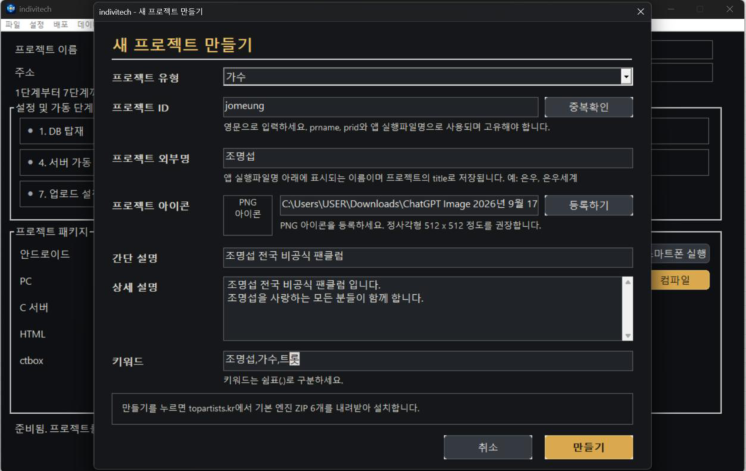
그림 3. 새 프로젝트 만들기 화면
새 프로젝트를 만들 때 가장 중요한 항목은 프로젝트 ID(Project ID)이다. 프로젝트 ID는 각 프로 젝트를 구분하는 고유한 값으로, 동일한 ID를 중복하여 사용할 수 없다.
프로젝트 ID를 입력한 후 “중복확인” 버튼을 클릭하면 해당 ID의 사용 가능 여부를 확인할 수 있 다. 다만 중복확인 시점에는 사용 가능한 ID였더라도, 이후 실제 프로젝트를 생성하기 전에 다른 사용자가 동일한 ID로 프로젝트를 먼저 생성할 수 있다.
따라서 최종적으로 하단의 “만들기” 버튼을 클릭하여 프로젝트를 생성하는 시점에 동일한 프로 젝트 ID가 이미 존재한다면 새 프로젝트는 생성되지 않는다.
프로젝트 ID는 단순한 식별자가 아니라 해당 프로젝트의 여러 구성 요소에서 공통으로 사용되는 핵심 값이다.
프로젝트 ID를 기준으로 데이터베이스 이름이 만들어지며, 인터넷 서비스의 URL 경로에도 사용 된다.
예를 들어 프로젝트의 기본 URL이 https://topartists.kr/ 이고 프로젝트 ID가 jomeung 이라면 해당 프로젝트의 기본 URL은 https://topartists.kr/jomeung/ 이 된다.
이 밖에도 프로젝트 ID는 화상회의 그룹 주소, 생방송 그룹 주소 등 프로젝트별로 독립되어야 하 는 여러 서비스의 고유 식별값으로 사용된다.
따라서 프로젝트 ID는 프로젝트를 처음 생성할 때 신중하게 결정해야 한다.
프로젝트 외부명은 사용자에게 표시되는 Android 프로그램이나 PC 프로그램의 이름을 의미한다.
이는 실행파일 자체의 파일명이 아니라, 프로그램을 설치하거나 실행했을 때 사용자에게 표시되 는 프로그램의 명칭이다.
프로젝트 외부명은 데이터베이스에서 title 값으로 저장된다. 따라서 쉽게 말하면 해당 프로젝트 의 타이틀(Title)이라고 볼 수 있다.
프로젝트 아이콘은 해당 프로젝트를 대표하는 이미지이다.
AI 등을 이용하여 512×512 크기의 아이콘을 제작한 후 등록할 수 있다.
등록된 프로젝트 아이콘은 이후 Android 앱 아이콘이나 PC 프로그램 아이콘 등으로 사용할 수 있다.
간단 설명, 상세 설명, 키워드 항목은 실제 프로그램의 실행 기능과 직접적인 관계는 없다.
이 정보들은 향후 인디비텍으로 제작된 시스템을 검색하거나 분류하기 위한 검색 및 정보 제공 용 데이터로 사용된다.
앞으로 인디비텍을 이용하여 제작된 시스템의 수가 많아지면, 여러 시스템을 검색하고 찾아볼 수 있는 별도의 포털 앱 또는 포털 서비스를 구성할 수 있다.
이때 간단 설명, 상세 설명, 키워드 등의 정보가 프로젝트를 검색하고 분류하는 자료로 활용된다.
필요한 정보를 모두 입력한 후 새 프로젝트 화면 하단의 “만들기” 버튼을 클릭하면 입력한 정보 를 기반으로 새로운 프로젝트의 기본 시스템이 생성된다.
처음 생성되는 기본 시스템은 가수 팬클럽 템플릿을 기반으로 하는 기본 형태의 시스템이다.
프로젝트를 생성하면 인디비텍 툴은 서버에서 다음과 같은 기본 템플릿 소스를 내려받아 개발 PC의 해당 프로젝트 영역에 저장한다.
• Android 앱 소스
• PC 앱 소스
• C 서버 소스
• HTML 소스
• CTBOX 관련 소스 및 파일 이렇게 내려받은 소스들이 새로운 프로젝트 개발의 기본 원본(Base Template)이 된다.
프로젝트 생성 이후에는 인디비텍 개발툴과 AI를 이용하여 이러한 기본 소스들을 수정하고 확장 하면서 프로젝트의 목적에 맞는 새로운 기능과 화면을 구성하게 된다.
즉, “새 프로젝트 만들기”는 완성된 프로그램을 만드는 과정이라기보다, 새로운 시스템 개발에 필 요한 기본 환경과 전체 소스 구조를 자동으로 준비하는 과정이라고 할 수 있다.
프로젝트가 생성되면 총 7단계를 거쳐 프로그램의 기본 실행 환경을 구축하게 된다.
인디비텍(Indivitech) 시스템이 정상적으로 구동되기 위해서는 서버에 해당 프로젝트만을 담당하 는 C 서버가 설치되어 실행되어야 하며, 해당 프로젝트의 데이터를 저장하기 위한 데이터베이스 (Database)도 생성되어야 한다.
또한 모든 시스템은 이미지, 동영상 등의 미디어 데이터와 각종 문서 데이터를 서버에 업로드한 다. 따라서 프로젝트별로 이러한 데이터를 저장할 수 있는 일정한 서버 공간도 필요하다.
인디비텍 시스템의 사용자 인터페이스(UI)는 기본적으로 HTML로 구성된다. HTML에는 Android, PC, Web 등 각각의 실행 환경과 서버를 연결하기 위한 브릿지(Bridge)가 포함되어 있으며, 이러 한 브릿지를 통해 서버와 데이터를 주고받는다.
따라서 개발된 HTML을 실제 서비스에 사용하기 위해 서버로 전송하는 과정 역시 설정 및 가동 단계에 포함된다.
DB 탑재는 해당 프로젝트에서 사용할 데이터베이스를 생성하는 작업이다.
“탑재하기” 버튼을 클릭하면 개발자 로그인 대화상자가 나타난다. 이곳에 개발자 계정을 입력하 여 인증이 완료되면 프로젝트에서 사용할 데이터베이스가 생성된다.
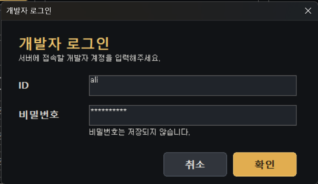
그림 4. 개발자 로그인
개발자 로그인 창은 각 단계의 작업을 실행할 때마다 나타난다.
프로그램을 개발하는 과정에서는 많은 데이터와 소스가 서버에 탑재된다. 이때 잘못된 데이터나 소스가 서버에 탑재되면 서버 운영에 문제가 발생할 수 있다.
따라서 보안을 위해 각 단계의 작업을 시작할 때마다 개발자 인증 과정을 거치도록 구성되어 있 다.
그림 5는 1단계인 DB 탑재가 완료된 후의 화면을 보여준다.
그림 5. 1단계 완료 후 설정 및 가동 단계 화면
1단계 DB 탑재가 완료되면 다음 단계인 관리자 계정 설정을 실행할 수 있다.
1단계가 정상적으로 완료되면 2단계 항목에 자동으로 “설정하기” 버튼이 나타난다. 이 버튼을 클 릭하면 관리자 계정을 생성할 수 있다.
관리자 계정의 “설정하기” 버튼을 클릭하면 그림 6과 같은 관리자 계정 설정 대화상자가 나타난 다.
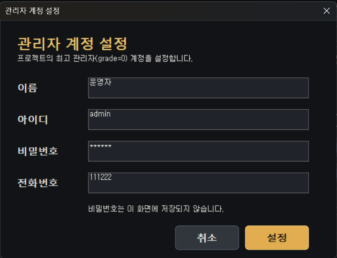
그림 6. 관리자 계정 설정
관리자 계정은 해당 시스템을 사용하는 최상위 관리자 계정을 의미한다.
관리자는 이 계정을 이용하여 시스템의 다양한 정보를 등록·수정·삭제하는 등의 관리 작업을 수 행할 수 있다.
실제 시스템을 개발할 때에는 이러한 기능을 수행할 수 있는 별도의 관리자 페이지도 개발할 수 있으며, 이때 사용하는 최상위 계정이 바로 여기에서 생성한 관리자 계정이다.
관리자 계정 등록이 완료되면 그림 7과 같은 화면이 나타난다.
그림 7. 2단계 완료 후 설정 및 가동 단계 화면
2단계가 완료되면 3단계 서버 탑재 항목에 “탑재하기” 버튼이 나타난다.
이 버튼을 클릭하면 C 서버를 탑재하기 위한 정보를 입력하는 대화상자가 나타난다.
그림 8은 서버 탑재 설정 대화상자를 보여준다.
그림 8. 서버 탑재 설정
인디비텍 시스템은 프로젝트 운영을 위해 총 5개의 포트(Port)를 사용한다.
이 포트 번호는 개발본부에서 통합 관리한다. 따라서 새로운 프로젝트를 구축할 때에는 개발본부 로부터 5개의 포트 번호를 할당받아 해당 항목에 입력해야 한다.
포트 번호를 입력한 후 “서버 탑재” 버튼을 클릭하면 서버로 전송하기 전에 먼저 C 서버 소스에 대한 보안검사가 실행된다.
C 서버 소스는 실제 서버에 탑재되어 직접 실행되는 프로그램이므로, 서버의 보안을 침해할 수 있는 코드가 포함되어 있는지를 사전에 검사해야 한다.
인디비텍의 C 서버 소스는 원칙적으로 서버의 하드디스크를 임의로 변경할 수 없으며, 허가된 네 트워크 이외의 외부 네트워크에 접속할 수 없다.
또한 해당 프로젝트에 허가된 데이터베이스와 시스템 서비스의 범위를 벗어난 자원이나 서비스 를 사용하려는 코드가 발견되면 해당 코드는 보안검사에서 차단되며, C 서버는 서버에 탑재되지 않는다.
보안검사에서 문제가 발견되어 서버가 탑재되지 않는 경우에는 표시된 내용을 확인하여 해당 소 스를 수정해야 한다.
만약 프로젝트의 특수한 기능 때문에 차단된 기능을 반드시 사용해야 한다면 해당 내용을 개발 본부에 전달하여 검토를 요청할 수 있다. 개발본부에서 해당 기능이 안전하고 필요한 기능이라고 판단하여 허가하면 보안 정책의 허용 항목으로 등록할 수 있다.
이와 같이 인디비텍 시스템은 서버 내부의 파일, 네트워크, 데이터베이스 및 각종 시스템 자원이 임의로 사용되지 않도록 관리한다.
서버 탑재가 성공하면 그림 9와 같이 다음 단계인 서버 가동 항목에 “가동” 버튼이 나타난다.
그림 9. 3단계 서버 탑재 완료 후 화면
그림 9와 같은 화면에서 “가동” 버튼을 클릭하면 해당 프로젝트의 C 서버가 실행된다.
그림 10은 C 서버가 정상적으로 가동된 상태의 화면을 보여준다.
그림 10. C 서버 가동 화면
서버가 정상적으로 가동되면 서버 가동 항목에 “멈춤” 버튼이 나타난다. 이 버튼을 클릭하면 해 당 프로젝트의 C 서버 서비스가 중지된다.
일반적으로 서버에서 지속적으로 실행되면서 서비스를 제공하는 프로그램을 데몬(Daemon)이라 고 한다.
예를 들어 웹 서비스를 제공하기 위해 Apache와 같은 웹서버 데몬이 실행되는 것처럼, 인디비텍 시스템에서도 각 프로젝트별로 개별화된 C 서버 데몬이 실행되어야 해당 프로젝트의 서버 기능 이 정상적으로 동작한다.
만약 해당 프로젝트를 더 이상 운영하지 않으려면 “멈춤” 버튼을 클릭하여 C 서버 서비스를 중 지할 수 있다. 서버 서비스가 중지되면 해당 C 서버를 이용하는 프로그램 기능도 더 이상 정상적 으로 동작하지 않는다.
따라서 인디비텍 개발툴은 단순히 프로그램을 코딩하는 도구에 그치지 않고, 프로젝트별 서버의 설치·가동·중지·업데이트까지 관리하는 통합 개발 및 운영 도구의 역할을 한다.
C 서버 소스를 수정한 경우에는 서버에 수정된 소스를 다시 탑재해야 한다.
이 경우 서버 탑재 단계에서 “업데이트”를 다시 실행한다. 새로운 C 서버가 탑재되면 기존 서버 의 가동 상태가 중지 상태로 변경되며, 이후 “가동” 버튼을 클릭하여 수정된 C 서버를 다시 실행 한다.
C 서버가 정상적으로 가동되면 다음으로 기본데이터 설정 단계로 넘어간다.
그림 10의 기본데이터 항목에 “설정하기” 버튼이 나타나며, 이 버튼을 클릭하여 프로젝트에서 사용할 기본 데이터를 생성할 수 있다.
그림 11은 “설정하기” 버튼을 클릭했을 때 나타나는 기본데이터 설정 대화상자를 보여준다.
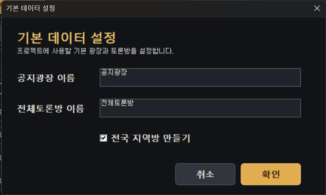
그림 11. 기본데이터 설정
인디비텍의 기본 시스템에는 두 종류의 기본 공간이 자동으로 생성된다.
하나는 공지사항을 담당하는 공간이고, 다른 하나는 시스템에 접속한 모든 사용자가 참여할 수 있는 전체 토론 공간이다.
이 두 기본 공간에 필요한 데이터는 자동으로 생성된다.
실제 프로젝트에서 이러한 기본 공간을 사용할 것인지 여부는 시스템 개발자가 결정할 수 있다.
기본 데이터가 생성되어 있더라도 해당 기능을 사용하지 않는다면 시스템 운영에는 큰 문제가 없다.
또한 “전국 지역방 만들기” 체크박스가 있으며, 이 항목은 선택 사항이다.
가수 팬클럽과 같이 전국 각 지역별 팬들이 참여하는 시스템의 경우 지역별 토론방을 자동으로 생성하면 편리하기 때문에 제공되는 기능이다.
지역방이 필요하지 않은 프로젝트에서는 해당 체크를 해제하면 된다.
기본데이터 설정이 완료되면 6단계 HTML 전송 항목이 활성화된다.
그림 12는 HTML 전송 항목이 활성화된 상태를 보여준다.
그림 12. HTML 전송
HTML 전송 항목의 “탑재하기” 버튼을 클릭하면 현재 프로젝트에 등록되어 있는 HTML 소스가 서버로 전송된다.
이 HTML은 실제 웹 서비스뿐 아니라 인디비텍 시스템의 여러 실행 환경에서 공통 UI 및 기능을 구성하는 중요한 요소이다.
프로젝트 개발 과정에서 AI 또는 개발툴을 이용하여 HTML을 수정했다면 수정된 HTML을 서버에 다시 전송해야 한다.
이 경우 6단계 HTML 전송 항목의 “탑재하기” 또는 해당 상태에서 제공되는 업데이트 기능을 다 시 실행하여 최신 HTML을 서버에 반영한다.
6단계 HTML 전송이 완료되면 마지막 단계인 업로드 설정이 활성화된다.
그림 13은 6단계가 완료되고 업로드 설정 단계가 활성화된 상태를 보여준다.
그림 13. 업로드 설정
업로드 설정은 일반적인 프로젝트에서는 변경할 일이 많지 않은 항목이다.
그러나 특정 프로젝트에서 이미지, 동영상, 문서 등의 데이터를 기본 저장 영역이 아닌 별도의 서버 영역에 저장해야 하는 경우에는 이 기능을 이용하여 업로드 경로를 변경할 수 있다.
이러한 별도의 저장 영역이 필요한 경우에는 먼저 개발본부에서 해당 프로젝트에 사용할 서버 공간을 할당받아야 하며, 할당받은 정보에 따라 업로드 경로를 설정한다.
일반적인 프로젝트에서는 기본 업로드 설정을 그대로 사용하면 된다.
이 단계에서 “탑재하기” 버튼을 클릭하여 업로드 설정을 완료하면 프로젝트의 설정 및 가동 7단 계가 모두 완료된다.
그림 14는 모든 단계가 완료되어 각 단계의 상태 표시가 활성화된 화면을 보여준다.
그림 14. 모든 설정 및 가동 단계 완료 화면
그림 14와 같은 상태가 되면 프로젝트의 기본 시스템이 활성화된 상태이다.
이 시점부터 기본 웹사이트를 사용할 수 있다.
인디비텍 시스템 메인 화면 상단의 “주소” 항목에 표시된 웹주소로 접속하면 현재까지 개발된 시스템을 웹브라우저에서 직접 확인할 수 있다.
이후 Android 앱과 PC 프로그램을 컴파일하고, 필요한 기능을 추가하거나 기존 기능을 수정하면 서 프로젝트를 계속 개발해 나가면 된다.
AI를 사용하기 위해서는 AI가 일을 할 수 있게 사전 정보를 주어야 한다. 이 사전 정보가 정확 할 수록 AI가 더 정확하게 일을 할 수가있다.
• AI를 교육하기 위해서는 먼저 3개의 소스를 AI에게 주어야 한다.
• 안드로이드 소스, C 서버 소스, 그리고 HTML 소스 이다. 이 소스를 주는 방법은 프로젝트 패키지 윈도우의 각 항목의 “ZIP 받기” 항목을 클릭하면 zip 파일을 받을 수 있다. 이 받은 파일을 AI의 전송 창에 넣는다. 그리고 다음과 같은 내용을 AI에게 전달한다.
[AI 전달사항] 본 시스템은 HTML에서 브릿지로 안드로이드로 넘어가고 안드로이드는 서버에 접속하여 C 서버와 연결한다. 화면은 HTML이 담당하고 데이터 저장 및 관리는 C 서버가 담당한다.
안드로이드는 중간 연계 역할을 한다. 사진과 동영상 그리고 문서를 로드 하여 업로드 하거나, GPS 정보를 얻거나, 큐알코드 정보를 얻는 등 디바이스에서 제공해야 할 필수적인 것을 담당한다. 이 내용을 검토해줘
그림 15는 AI에게 전달하는 화면이다.
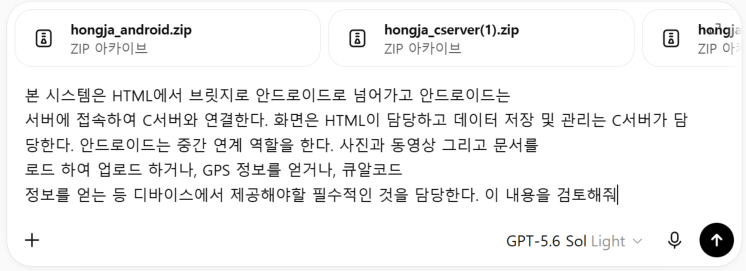
그림 15 AI에게 기본 구조 전달한 화면
AI에게 일을 시키고자 할 때 정보를 정확하게 주어야 한다. 우리 프로그램의 구조를 정확하게 전 달해야만 AI가 해당 소스를 정확하게 수정할 수 있다.
이때 안드로이드 소스 zip 파일과 C 서버 소스 zip 파일 그리고 HTML zip 파일을 첨부하고 설명 을 넣고 Ai에게 전송한다.
AI의 응답은 다양하다. 중요한 것은 AI가 그 구조를 이해 하게 만든다는 것이다.
우리 시스템은 중간 시스템으로 안드로이드, PC, 아이폰, 웹소켓 을 사용한다. 안드로이드는 전 항목에서 이미 AI에게 정보를 주었다. 그 다음 PC 정보를 주어야 한다.
PC 소스 zip 파일을 AI 에게 주면서 AI에게 다음과 같이 정보를 준다.
[AI 전달사항] 안드로이드 외에 중간 시스템으로 PC 시스템이 있어 이 시스템 구조도 확인을 해봐
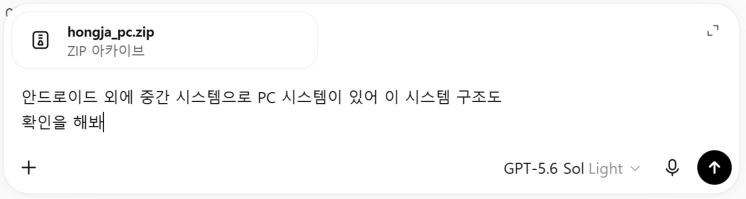
그림 16 PC zip 파일 AI에게 전송
AI 응답은 다양하게 나온다. 중요한 것은 AI가 이 구조를 이해 하게 하는 것이다.
이 구조를 이해 하면 AI는 새로운 기능을 추가할 때 “PC zip 파일도 추가해줘”라는 식으로 해당 소스도 고치려고 한다.
만약 PC 소스 zip을 주지 않으면 AI는 PC가 있다는 것을 알지 못하기에 PC 소스는 고치지 못한다.
그림 17은 AI가 인식하여 전체 구조를 보여주는 예이다. 이렇게 전체 구조를 보여주면 AI가 우리 시스템 개발 준비가 되어 있다는 의미가 된다.
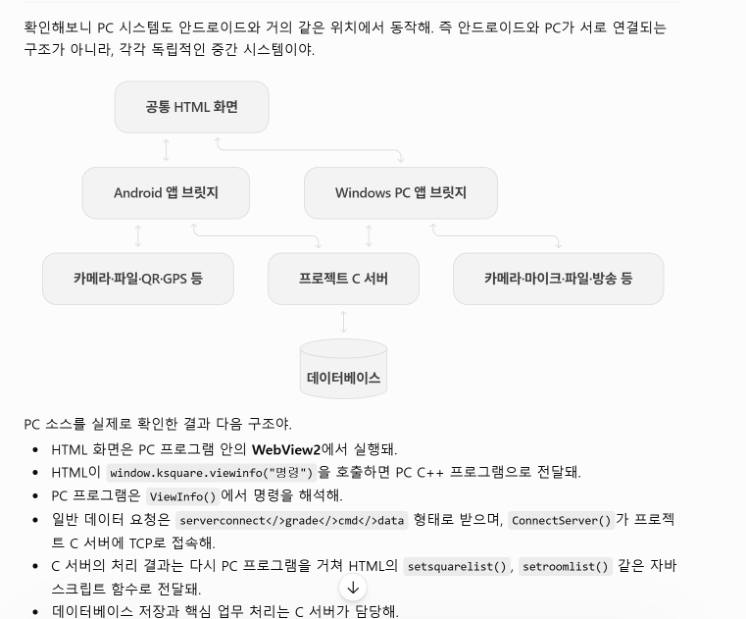
그림 17 인디비텍 시스템 구조를 이해한 AI의 답변
우리 시스템은 웹에서도 사용가능하다. 필자는 이것을 웹앱이라 이야기 한다. 웹에서는 웹소켓으 로 접속하고 웹소켓에서 다시 C 서버 소켓으로 접속한다.
이 웹소켓은 개발툴에 포함되지 않는다.
모든 새로운 개발은 C 서버를 수정하게 될 것이다. 이때 C 서버에 연결하는 것이 grade와 cmd 이다.
브리지로 사용하는 함수는 viewinfo 함수 인데 이 함수에서 viewinfo(“serverconnect</>grade=5&cmd=24&…”)
이렇게 전송하면 안드로이드와 PC는 그 내용을 서버에 전송한다. 같은 형태로 웹소켓도 서버에 접속한다. 즉 새롭게 기능을 추가 할때는 viewinfo 함수명이 serverconnect 이고 grade=5 이다.
그리고 cmd는 안쓰는 번호를 할당해서 사용하면 된다.
이 내용을 AI에게 설명 해야 한다.
[AI 전달 사항] 웹에서 우리 프로그램을 구동할때는 웹소켓으로 연결하고 그리고 웹소켓에서 C 서버 소켓으로 연결해. 새로운 기능이 추가되면
viewinfo(“serverconnect</>grade=5&cmd=번호&…”) 이 구조를 사용하면 돼 그러면 웹소켓은 자동으로 해당 기능을 인지하고 C 서버에 전달해 따라서 웹소켓 소스를 너가 알필요가 없어.
그리고 새로운 기능을 C 서버에 탑재할때는 무조건 grade=5로 해야돼
그림 18은 본 내용을 인지한 AI의 답변이다.
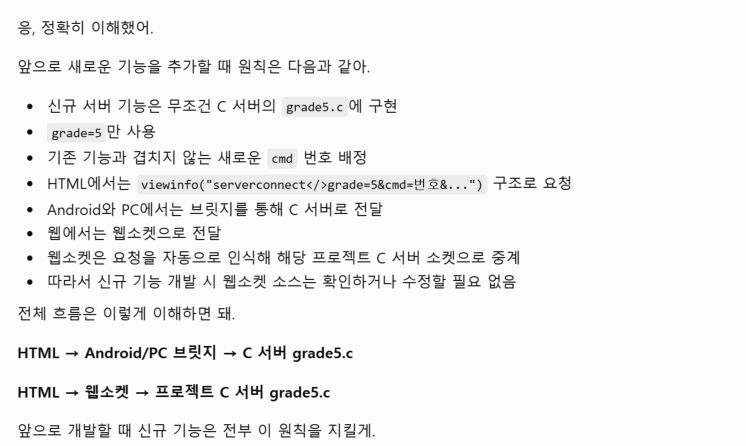
그림 18 웹소켓 구조를 이해한 AI의 답변
지금까지 하면 AI가 우리 시스템을 업그레이드 할 수가 있게 된다.
인디비텍 시스템은 자체적으로 AI를 활용하는 개발 시스템이기도 하다. 일반 AI가 생성한 소스를 그대로 적용하는 것이 아니라, 해당 소스를 분석하고 인디비텍 시스템의 구조에 맞게 변형한 후 서버에 탑재한다.
앞 항목에서는 일반 AI에게 인디비텍 시스템의 전체 구조를 설명하였다.
이제부터는 AI에게 시스템에서 무엇을 수정하고 어떤 기능을 추가할 것인지 구체적으로 요청하 면 된다.
예를 들어 메인 화면의 디자인을 변경하고 싶다면 AI에게 다음과 같이 문의한다.
[AI 전달문] 메인 화면을 초록색 자연 파스텔 느낌이 나도록 바꿔줘.
이 기능을 수정하려면 어떤 ZIP 파일이 필요해?
현재 Android 소스, PC 소스, C 서버 소스, HTML 소스 ZIP 파일이 있어.
이렇게 문의하면 AI는 대략 다음과 같이 답변할 것이다.
[AI 답변] 응. 이번 작업은 화면 디자인 수정이므로 HTML 소스 ZIP 파일만 있으면 수정할 수 있어.
이때 AI에게 HTML 소스 ZIP 파일을 첨부하면서 다음 사항을 정확하게 전달해야 한다.
[AI 요청문] 첨부한 HTML ZIP 파일 안의 HTML을 수정해줘.
수정한 파일을 원래 ZIP 파일과 동일한 폴더 구조로 다시 넣고, 수정된 전체 HTML 소스를 ZIP 파일로 묶어서 줘. 그래야 내가 인디비텍 툴을 이용해 업그레이드할 수 있어.
이렇게 요청해야 하는 이유는 수정된 파일이 기존에 전달한 ZIP 파일과 동일한 폴더 구조 안에 들어 있어야 하기 때문이다.
AI가 제공한 수정 ZIP 파일을 인디비텍 툴의 해당 항목에 드래그 앤 드롭하면 새로운 소스가 프 로젝트에 탑재된다.
인디비텍 툴은 개별 HTML 파일이나 C 또는 C++ 파일을 직접 받는 방식이 아니다. 해당 소스 전체가 포함된 ZIP 파일을 받도록 설계되어 있다.
따라서 파일 하나만 수정했더라도 반드시 수정된 전체 소스가 들어 있는 ZIP 파일을 받아야 한 다.
단순한 화면 수정이 아니라 새로운 기능을 개발하려면, 먼저 AI에게 원하는 기능을 설명하고 어 떤 ZIP 파일이 필요한지 물어본다.
예를 들어 설문 기능을 추가하려면 다음과 같이 요청할 수 있다.
[AI 요청문] 메인 화면에서 ‘설문하기’ 버튼을 누르면 설문지가 나타나고, 사용자가 설문에 참여할 수 있게 만들어줘.
설문 내용과 설문 결과를 저장할 데이터베이스 테이블도 필요해.
또한 ‘설정’ 페이지에서 관리자가 설문 제목, 질문, 선택 항목 등을 등록하고 관리할 수 있게 만들어줘.
이 기능을 개발하려면 어떤 ZIP 파일이 필요해?
위와 같이 요청하면 AI는 다음과 비슷하게 답변할 것이다.
[AI 답변] 알았어. 설문 기능을 만들려면 설문 내용과 참여 결과를 저장할 데이터베이스 테이블이 필요해.
필요한 CREATE TABLE SQL문을 만들어 줄 테니 인디비텍 툴에서 실행해줘.
그리고 HTML 소스 ZIP 파일과 C 서버 소스 ZIP 파일을 첨부해줘. HTML에서는 serverconnect 방식으로 요청하고, 새로운 서버 기능은 C 서버의 grade5.c에 grade=5와 사용하지 않는 cmd 번호를 배정하여 구현할게.
새로운 기능에 별도의 데이터베이스 테이블이 필요하다면 먼저 해당 테이블을 생성해야 한다.
인디비텍 툴의 상단 메뉴에서 데이터베이스 → SQL 항목을 선택하면 SQL문을 실행할 수 있다.
그림 19는 인디비텍 툴에서 데이터베이스의 SQL 항목을 선택했을 때 나타나는 화면이다.
새로운 기능을 개발할 때는 데이터를 생성하고 저장해야 하는 경우가 많다.
사용자가 데이터를 입력하거나 검색하는 화면은 주로 HTML이 담당한다. HTML에서 입력된 데이 터는 Android 앱, PC 프로그램 또는 WebSocket을 거쳐 C 서버로 전달된다.
C 서버는 전달받은 데이터를 데이터베이스에 저장해야 한다. 따라서 데이터를 저장할 수 있는 구 조가 먼저 준비되어야 한다. 일반적으로 이러한 데이터 저장 구조를 데이터베이스의 테이블 (Table)이라고 한다.
새로운 기능에 데이터를 저장할 공간이 필요하다면 AI에게 반드시 다음과 같이 요청해야 한다.
[AI 전달문] 이번에 추가하는 기능의 데이터를 저장해야 해.
이 기능에 적합한 데이터베이스 테이블 구조를 설계하고, 테이블을 생성할 수 있는 SQL문으로 만들어줘.
이렇게 요청하면 AI가 해당 기능에 맞는 테이블 구조와 SQL문을 만들어 줄 것이다.
AI가 제공한 SQL문을 그림 19의 SQL 쿼리 입력란에 넣고 실행 버튼을 누르면 SQL문이 서버로 전송되고, 해당 프로젝트의 데이터베이스에 새로운 테이블이 생성된다.
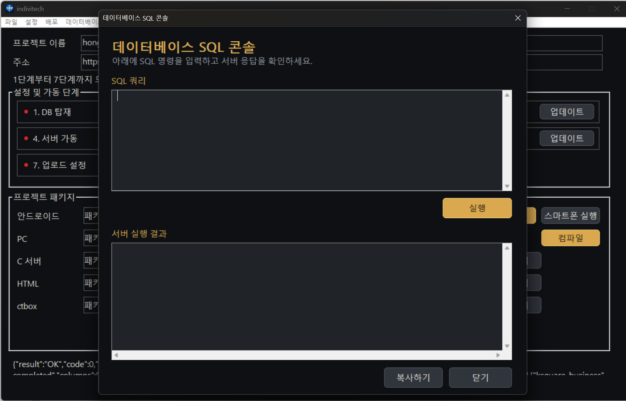
그림 19. SQL 실행 화면
인디비텍 시스템의 새로운 기능은 기본적으로 다음 구조를 이용하여 개발할 수 있다.
HTML → viewinfo("serverconnect</>grade=5&cmd=번호&...") → C 서버의 grade5.c 대부분의 일반적인 기능은 다음 두 개의 소스만 수정하면 구현할 수 있다.
• HTML 소스 ZIP 파일
• C 서버 소스 ZIP 파일 필요한 경우 새로운 데이터베이스 테이블을 추가하면 된다.
이러한 기능은 Android 앱이나 PC 프로그램이 기존 serverconnect 요청을 C 서버로 전달할 수 있으므로 중간 시스템을 수정할 필요가 없다.
HTML 소스를 수정한 경우에는 인디비텍 툴에서 6. HTML 전송 항목을 업데이트한다.
C 서버 소스를 수정한 경우에는 다음 순서로 적용한다.
1. 3. 서버 탑재 항목을 업데이트한다.
2. 4. 서버 가동 항목에서 서버를 다시 가동한다.
그러나 새로운 기능의 특성에 따라 Android 소스나 PC 소스까지 수정해야 하는 경우가 발생할 수 있다.
예를 들어 다음과 같은 기능은 Android 또는 PC 프로그램의 수정이 필요할 수 있다.
• 카메라 또는 마이크 사용
• 사진·동영상·문서 선택
• GPS 위치정보 확인
• QR코드 인식
• Windows 파일 선택
• 방송 송출 및 녹화
• 화상회의
• 운영체제에서 직접 제공해야 하는 기능 따라서 새로운 기능을 추가하기 전에는 AI에게 반드시 다음과 같이 물어보는 것이 좋다.
[AI 전달문] 이 기능을 추가하려면 어느 부분을 수정해야 해?
HTML 소스와 C 서버 소스만 수정해서 구현할 수는 없어?
Android 소스나 PC 소스도 수정해야 한다면 그 이유와 필요한 ZIP 파일을 알려줘.
가능하다면 HTML 소스와 C 서버 소스만 수정하는 방향으로 개발하는 것이 좋다. 이렇게 하면 Android 앱이나 PC 프로그램을 다시 컴파일하고 배포하지 않아도 되기 때문이다.
그러나 HTML과 C 서버만으로 구현할 수 없는 기능이라면 Android 소스와 PC 소스를 포함하여 필요한 모든 소스를 수정해야 한다.
이 경우에는 수정된 전체 소스 ZIP 파일을 인디비텍 툴에 다시 탑재한 후 Android 앱, PC 프로그 램 또는 필요한 실행파일을 새로 컴파일하여 재배포해야 한다.
인디비텍 툴은 3가지 프로그램이 기본적으로 설치 되어 있어야 한다.
• Visual Studio 2022 이상 (C++ 개발용으로 C++ 컴파일러가 탑재 되어야 한다)
• Android Studio 최신 버전
• Inno Setup Compiler 위 3개의 프로그램은 모두 무료이며 AI에게 물어보면 다운 주소를 알려 줄 것이다.
인디비텍은 위 3개의 컴파일 엔진을 이용한다. 안드로이드 프로그램은 Android Studio 의 컴파일 엔진을 이용한다. 그러나 Android Studio 툴을 실행 시키지는 않는다. 3개의 툴 모두 실행은 시키 지 않고 컴파일 엔진만 내부로 연결한다.
즉 인디비텍 툴에서 컴파일 버튼을 클릭하면 자동으로 컴파일 되어 APK,AAB,EXE 파일들이 만들 어 진다.
안드로이드는 프로젝트 패키지의 안드로이드 항목의 컴파일 버튼을 클릭하면 컴파일이 된다. 그 림 20과 같은 화면에서 황금색 “컴파일” 버튼을 클릭하면 해당 소스가 컴파일 된다.
그림 20. 안드로이드 패키지 화면
만약 컴파일된 실행파일을 바로 스마트폰에서 탑재 하고자 할 경우 컴파일 한후 스마트폰 실행 버튼을 클릭하면 된다. 이때 스마트폰에 개발자 모드를 켜야 한다. 스마트폰에 개발자 모드를 키 는 방법은 AI에게 문의 하면 된다.
안드로이 컴파일을 할 때 프로그램의 아이콘을 설정하고자 할때는 메뉴의 “설정” 항목에서 안드 로이드 아이콘을 선택하여 아이콘 그림을 등록하면 된다. 또한 스마트폰에 앱 이름을 설정하고자 할 때 설정의 “안드로이드 이름” 항목을 이용하여 이름을 설정하면 된다.
프로그램을 컴파일 한 후 이 APK를 서버에 업로드 시키고 그리고 서버에서 다운 받게 하고자 할 경우 메뉴의 “베포” 에서 “안드로이드 베포” 항목을 클릭하여 업로드 한다. 이렇게 업로드 되면 해당 업로드 주소가 등록 된다. 이 주소를 알고자 할 경우 배포의 “안드로이드 주소” 항목을 선 택하면 주소를 볼 수가 있다.
프로그램을 배로 시키고 난후 수정해서 업그레이드 될 때 는 버전을 달리 해야 한다. 이대 앱의 버전을 증가 시키는 항목이 “배포”의 안드로이드 버전 등록 항목이다. 버전을 업그레이드 해서 배포를 하면 이전 버전을 가지고 있던 사용자 앱에서 앱이 업그레이드가 되었다는 메시지가 뜨 고 다운 받을 수 있게 인도한다.
안드로이드 앱을 구글 플레이 스토어에 업로드 할 경우 이때는 APK 가 아닌 AAB 파일을 사용한 다. 안드로이드 앱을 AAB 앱으로 컴파일 하고자 할 경우 배포 메뉴에서 “AAB 만들기”를 선택 하 면 된다.
PC 소스를 바꾸고 컴파일 할 경우 프로젝트 패키지에서 PC 항목의 “컴파일” 버튼을 클릭하면 된 다.
그림 21은 PC 패키지 항목을 보여 준다.
그림 21. PC 패키지 항목
PC 프로그램이 컴파일 되면 프로젝트ID.EXE 와 부속 DLL,EXE 가 만들어 진다. 이 PC 프로그램도 아이콘을 변경하고자 할 경우 설정 메뉴에서 “PC 아이콘” 항목을 선택하면 된다. PC 프로그램 또 한 안드로이드 프로그램 처럼 버전으로 관리 된다. PC 프로그램이 수정되면 버전을 업 하고 그리 고 다시 컴파일을 한다.
PC 프로그램을 배포하는 것은 Setup 파일을 만드는 것이다. 배포에 “PC 셋업파일 만들기”를 클 릭하면 Setup 파일이 만들어지고 그 셋업 파일이 PC 에 만들어 지고 서버에 업로드 된다. 서버 에 업로드된 주소를 알고자 할 경우 배포 메뉴에서 “PC 파일 주소 보기”항목을 선택하면 된다.
웹 페이지는 설정 및 가동 단계 7단계가 끝나면 자동으로 웹 페이지가 만들어 지고 접속이 가능 하다. 이때 최초의 html 파일을 login.html 이다.
만약 비회원도 메인 화면을 먼저 볼수 있게 하려면 처음 파일을 main.html로 바꾸면 된다. 이것 은 설정의 “처음파일” 항목을 수정하면 된다. 이때 처음 파일은 main.html 이나 index.html 뿐이 다. 그 외에 파일 이름을 쓰면 안된다.
특허등록번호 10-2869666
한국 등록특허 PDF 보기 ↗특허 출원 번호 19/564,935
미국 출원서류 PDF 보기 ↗技术资料已按主题整理。点击标题即可阅读说明和插图。
我们将这种个性化系统命名为 Indivitech。
Indivitech 是一种利用人工智能,根据用户需求自动开发各类 IT 系统的开发平台。
长期以来,大量 IT 系统一直依靠程序员与系统设计人员协作开发,需要投入大量时间、精力和资源。受传统开发方式的限制,目前广泛使用的往往是“统一平台”,即所有用户都在同一个系统中使用相同的功能。
典型的统一平台包括视频传播平台 YouTube、聊天服务 KakaoTalk,以及 Facebook、X(原 Twitter)和Instagram 等社交媒体与通信平台。
然而,能够把视频播放、聊天与即时通信、直播、ERP 和电子商务结合起来,并按照每个用户或组织的具体需求进行设计的真正个性化系统,目前仍然很少见。
原因在于这些功能十分复杂,系统的安装、运行和维护也需要专业技术。因此,个人和小型组织很难建设并运营属于自己的综合 IT 系统。
如今,我们正处于人工智能时代。
AI 可以撰写项目方案、完成设计和音乐创作,甚至制作电影。许多过去被认为只能由人类专业人员完成的高水平工作,如今也可以由 AI 执行。
软件开发是 AI 最能发挥能力的领域之一。不过,由于软件的目标、开发方向和算法结构差异很大,AI 生成的程序仍可能无法完全符合用户的实际目的。
我们认为,只要预先建立基本系统架构并明确开发方向,即使是非常复杂的软件,也可以由 AI 稳定、可靠地完成开发。
基于这一理念,我们开发了 AI 开发工具 Indivitech。
Indivitech 具有预先设计的核心架构。基于该架构,系统由五个模板组成;这些模板相互连接,并共同作为一个完整的软件系统运行。
AI 的作用是根据用户的目标和需求修改这五个模板,以最高效的方式将它们连接并优化,从而形成完整的个性化系统。
目前,AI 已经与 Indivitech 相结合,用于开发和优化多种软件系统。
Indivitech 并不只是一个用于制作单一程序的工具。
它代表了一种新的软件开发方式,使任何人都能够利用 AI 构建自己所需要的 IT 系统。
本章说明 Indivitech 的整体架构、云端处理核心 CP(Cloud Process)的作用,以及如何通过 HTML、平平台网关应用和数据库处理来实现新功能。
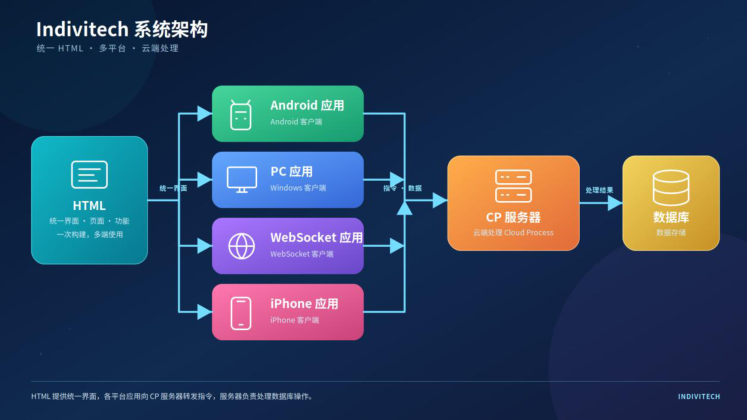
图 1 Indivitech 系统架构
图 1 展示了 Indivitech 系统的整体结构。
用户实际看到的界面由 HTML 构成。负责显示 HTML 界面并将其连接到整个系统的中间应用共有四种:
Android 应用PC 应用WebSocket 应用iPhone 应用这四种应用是连接 HTML 界面与 CP 服务器的中间集成层。它们接收用户在 HTML 界面中输入或选择的信息,并将其传送到 CP 服务器。
当用户选择照片、视频或文档,或者使用 GPS、摄像头等设备功能时,中间应用会把设备处理结果与用户输入信息结合起来,再发送到 CP 服务器。
例如,当用户上传照片时,Android 应用会通过设备相册选择照片,而 PC 应用则通过文件选择对话框选择照片。
中间应用按照规定的协议把所选文件传送到服务器,然后将文件传输结果与用户输入的信息结合,并把组合后的数据发送给 CP 服务器。CP 服务器分析接收到的信息,按需要将其保存到数据库,并执行其他关键系统处理。
CP,即 Cloud Process(云端处理),可以视为 Indivitech 的核心内核。
每个 Indivitech 系统都配置一个专用 CP。因此,如果有 100 个 Indivitech 系统在运行,服务器上就会以独立守护进程的形式运行 100 个 CP 实例。
正是由于这种架构,Indivitech 才被称为“个性化系统”。
它并不要求所有系统采用相同的标准化形式,而是根据各自的使用目的和运营特点,以不同方式进行设计和运行。
如图 1 所示,当 Indivitech 系统被修改或扩展时,变化最多的部分是前端 HTML 界面和后端 CP。
以在主界面添加“写文章”按钮,并在点击该按钮后打开写作页面的功能为例。
用户提交文章后,系统需要分析内容,分离搜索所需的信息,并将处理结果保存到数据库。
HTML 层负责实现“写文章”按钮和写作页面。用户提交文章后,中间应用不会单独分析数据,而是把接收到的数据直接转发给 CP 服务器。
CP 服务器对数据进行分析,分离所需字段,并将其保存到数据库。
因此,即使开发新功能,主要需要修改的仍然是 HTML 层和 CP 层。Android、PC、WebSocket 和iPhone 应用主要作为数据传输网关,其现有结构通常可以继续复用。
通过修改 HTML 界面和 CP 处理逻辑,并设计支持相应功能的数据库,就可以开发出多种不同形式的个性化系统。
我们将这种 CP 架构命名为“云区块链技术”,并已完成相关技术的专利申请与注册。
利用这种架构,可以高效开发具有不同目的和功能的应用。它还具有一项重要优势:能够连接多个应用的CP,并将其扩展为大型综合系统。
例如,假设多家销售商品的企业分别运营各自独立的 Indivitech 系统。
每家企业都可以独立运营自己的系统;但当这些系统的 CP 通过联合架构连接起来时,就可以共同形成一个类似大型网上商城的综合系统。
这样,每家企业既可以独立拥有并管理自己的系统和客户数据,又可以在需要时与其他系统连接,形成更大的服务生态。
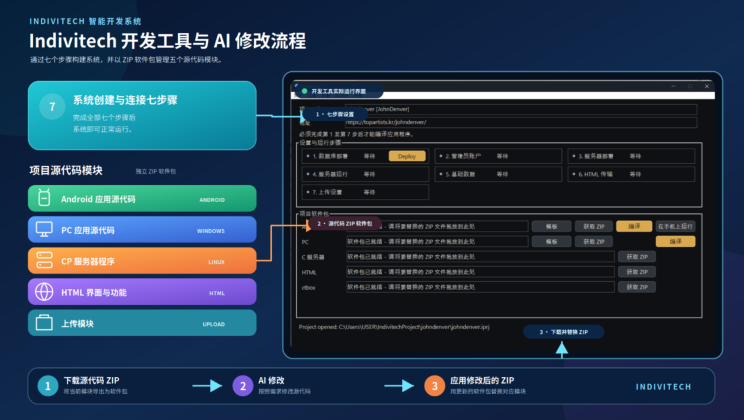
图 2 Indivitech 开发工具结构与 AI 修改流程
图 2 展示了 Indivitech 开发工具的结构以及利用 AI修改源代码的流程。该工具在同一个界面中整合了系统设置、源代码包管理、编译、部署和 AI 辅助修改。
Indivitech 开发工具的主界面分为两个区域。上部是创建并连接系统所需的七个步骤,下部用于管理Indivitech 与 AI 之间的源代码交换。
项目要正常运行,服务器端首先需要具备与项目关联的数据库信息、服务器程序、HTML 数据及其他资源。主界面上部按照七个设置与连接步骤,依次处理这些内容。
完成全部七个步骤后,项目即可运行。系统可以通过三种形式使用:Android 应用、Windows PC 应用和网页应用。
平台 构建与运行方法点击 Android 行中的“编译”生成 APK。点击“编译”旁边的“智能手机运行”,可以把AndroidAPK 安装到已连接的智能手机并启动。智能手机必须启用开发者模式。
平台 构建与运行方法Windows PC 点击 PC 行中的“编译”生成可执行程序,然后运行生成的可执行文件。
网页 在网页浏览器中打开主界面上方地址栏所显示的 URL。
不同设备启用开发者模式的方法有所不同。用户可以参考智能手机说明文档,或者请 AI 助手提供适合相应机型的操作方法。
传统上,软件系统的各个部分都必须在相应的编程语言和开发环境中手工编写。Android 应用通常使用Java,Windows PC 应用通常使用 C 或 C++,而基于 Linux 的 CP 服务器则使用 C 语言开发。
手工编写和维护这些程序需要大量时间与精力。错误的代码还可能在系统的不同组成部分中造成缺陷、运行故障和集成问题。
使用 Indivitech 开发工具,开发人员无需手工修改每一行代码。需要修改或扩展的源代码模块会被导出为ZIP 文件,并与开发需求一起提供给 AI。
AI 检查并修改源代码,然后返回更新后的 ZIP 文件。开发人员把该 ZIP 文件拖放到 Indivitech 主界面的相应区域,Indivitech 会验证软件包并替换对应的项目源代码模块。
当 Android 或 Windows PC 源代码被修改后,开发人员点击“编译”即可生成新的可执行软件包。其他模块则按照各自的部署方式进行应用。
模块 更新方法Android 编译更新后的源代码,生成新的 APK。
Windows PC 编译更新后的源代码,生成新的可执行程序。
HTML 重新执行第 6 步“HTML 传输”,上传并刷新 HTML 文件。
C 服务器 重新执行第 3 步“服务器部署”,然后通过第 4 步“服务器运行”重新启动服务器。
Ctbox 重新执行第 7 步“上传设置”,应用更新后的上传模块。
开发人员的实际工作流程非常简单:向 AI 说明需要开发或修改的内容,将所需源代码模块导出为 ZIP 软件包并提供给 AI,接收修改后的软件包,再将其导入 Indivitech。
虽然这种工作流程大幅减少了手工编码,但掌握计算机体系结构、数据库、网络和软件结构等基础知识仍然十分必要。这些知识能够帮助开发人员正确提出需求、选择合适的模块、评估 AI 生成的结果,并安全地运行完成后的系统。
图 3 展示了启动 Indivitech 工具后,在 “文件” 菜单中选择 “新建项目” 时显示的界面。
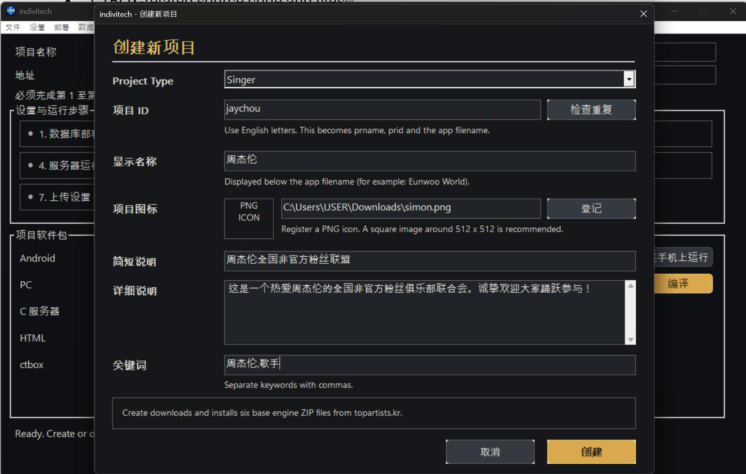
图 3. 新建项目界面
创建新项目时,最重要的项目是 项目 ID(Project ID)。
项目 ID 是用于区分不同项目的唯一标识符,因此不能使用重复的项目 ID。
输入项目 ID 后,点击 “检查是否可用” 按钮,即可确认该 ID 是否可以使用。
但是,即使在检查时该项目 ID 显示为可用,在实际完成项目创建之前,也有可能被其他用户抢先使用相同的 ID 创建项目。
因此,在最终点击界面下方的 “创建” 按钮时,系统会再次检查项目 ID。如果此时已经存在相同项目 ID的项目,则新的项目将无法创建。
项目 ID 不仅仅是一个简单的标识符,它还是项目内部多个组件和服务共同使用的核心识别值。
系统会根据项目 ID 创建相应的数据库名称,同时项目 ID 也将作为项目互联网访问地址的 URL 路径的一部分。
例如,假设系统的基础 URL 为:
https://topartists.kr/项目 ID 为:
jomeung那么该项目的基础 URL 将变为:
https://topartists.kr/jomeung/除此之外,项目 ID 还会作为各种项目专用服务的唯一标识,例如视频会议组、直播组以及其他需要独立区分的服务组。
因此,在创建项目时,应慎重确定项目 ID。
**项目显示名称(Project Display Name)**是指向用户显示的 Android 应用程序或 PC 应用程序的名称。
它并不是程序可执行文件本身的文件名,而是用户安装或运行程序时所看到的应用程序名称。
项目显示名称在数据库中以 title 字段保存。
简单来说,可以将其理解为该项目的标题(Title)。
**项目图标(Project Icon)**是代表该项目的图像。
可以使用 AI 或其他图像制作工具创建一个 512 × 512 像素的图标,然后将其注册到项目中。
注册后的项目图标可以作为 Android 应用程序图标、PC 应用程序图标,也可以用于其他需要显示项目标识的地方。
简短说明、详细说明和关键词与应用程序本身的实际运行功能没有直接关系。
这些信息主要作为搜索和项目信息数据进行保存,用于今后搜索、分类和管理通过 Indivitech 创建的各种系统。
随着使用 Indivitech 创建的系统数量不断增加,未来可以构建一个独立的门户应用程序或门户服务,让用户能够搜索和查找这些系统。
届时,简短说明、详细说明和关键词等信息可以作为搜索、分类以及展示各个项目的重要资料。
输入所有必要的信息后,点击“新建项目”界面下方的 “创建” 按钮。
Indivitech 将根据输入的信息自动生成新项目的基础系统。
最初生成的系统基于一个基本的歌手粉丝俱乐部模板(Singer Fan Club Template)。
创建项目时,Indivitech 工具将从服务器下载所需的基础模板源代码,并将其保存到开发 PC 上对应的项目目录中。
下载的模板包括:
Android 应用程序源代码PC 应用程序源代码C 服务器源代码HTML 源代码CTBOX 相关源代码及文件这些下载到开发 PC 上的源代码和文件将成为开发新项目所使用的基础模板(Base Template)。
项目创建完成后,开发人员可以使用 Indivitech 开发工具和 AI 对这些基础源代码进行修改和扩展,并根据项目的具体用途增加新的功能、用户界面以及各种服务。
换句话说,“新建项目”并不是直接创建一个已经完全开发完成的应用程序,而是自动准备开发新系统所需的基础开发环境以及完整的源代码结构。
项目创建完成后,需要经过总共 7 个阶段来建立程序的基本运行环境。
为了使 Indivitech 系统能够正常运行,服务器上必须安装并运行一个专门负责该项目的 C 服务器,同时还需要创建用于存储该项目数据的数据库(Database)。
此外,所有系统都需要将图片、视频等媒体数据以及各种文档数据上传到服务器。因此,需要为每个项目分配一定的服务器存储空间,用于保存这些数据。
Indivitech 系统的用户界面(UI)基本采用 HTML 构建。HTML 中包含用于连接 Android、PC、Web 等不同运行环境将服务器的桥接模块(Bridge),系统通过这些桥接模块与服务器进行数据交换。
因此,将开发完成的 HTML 文件传输到服务器并用于实际服务,也是设置与运行阶段的重要组成部分。
数据库部署是创建该项目所使用数据库的过程。
点击 “部署” 按钮后,将出现开发者登录对话框。在此输入开发者账号并完成身份验证后,系统将创建该项目所使用的数据库。
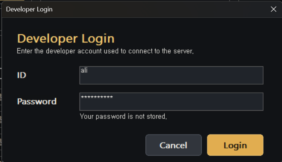
图 4. 开发者登录
每次执行一个设置阶段时,都将出现开发者登录窗口。
在程序开发过程中,大量数据和源代码会被部署到服务器。如果错误的数据或源代码被上传到服务器,可能会将服务器的正常运行造成影响。
因此,为了保障服务器安全,每次开始执行一个新的设置或运行阶段时,都必须进行开发者身份验证。
图 5 展示了第 1 阶段“数据库部署”完成后的界面。

图 5. 第 1 阶段完成后的设置与运行界面
第 1 阶段数据库部署完成后,即可进入下一阶段——管理员账号设置。
当第 1 阶段正常完成后,第 2 阶段项目中将自动出现 “设置” 按钮。点击该按钮即可创建管理员账号。
点击管理员账号项目中的 “设置” 按钮后,将出现如图 6 所示的管理员账号设置对话框。
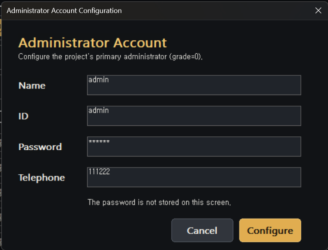
图 6. 管理员账号设置
管理员账号是指该系统中的最高级别管理员账号。
管理员可以使用该账号对系统中的各种信息进行添加、修改、删除等管理操作。
在实际开发系统时,还可以另外开发用于执行这些管理功能的管理员页面。在管理员页面中使用的最高级别账号,就是在此阶段创建的管理员账号。
管理员账号注册完成后,将出现如图 7 所示的界面。

图 7. 第 2 阶段完成后的设置与运行界面
第 2 阶段完成后,第 3 阶段的服务器部署项目中将出现 “部署” 按钮。
点击该按钮后,将出现用于输入 C 服务器部署信息的对话框。
图 8 展示了服务器部署设置对话框。
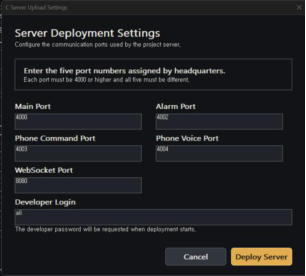
图 8. 服务器部署设置
Indivitech 系统在项目运行过程中总共使用 5 个端口(Port)。
这些端口号由开发总部统一管理。因此,在建立新的项目时,需要首先从开发总部获得分配给该项目的 5个端口号,然后将这些端口号输入相应的项目中。
输入端口号后,点击 “服务器部署” 按钮。在将源代码传输到服务器之前,系统首先将 C 服务器源代码进行安全检查。
由于 C 服务器源代码将被实际部署到服务器并直接运行,因此必须事先检查源代码中是否包含可能危害服务器安全的代码。
原则上,Indivitech 的 C 服务器源代码不得擅自修改服务器硬盘中的内容,也不得连接到未经许可的外部网络。
此外,如果发现源代码试图访问超出该项目所允许的数据库、系统服务或其他系统资源,安全检查系统将阻止该代码,并禁止 C 服务器部署到服务器。
如果安全检查发现问题,导致服务器无法部署,则需要根据系统显示的信息检查并修改相应的源代码。
如果由于项目的特殊功能需求,确实必须使用被安全系统阻止的功能,可以将相关内容提交给开发总部进行审核。
如果开发总部确认该功能确实必要并且可以安全使用,则可以将相应功能加入安全策略的允许项目中,使其能够正常部署。
通过这种方式,Indivitech 系统严格管理服务器内部的文件、网络、数据库以及各种系统资源,防止这些资源被未经授权地使用。
服务器部署成功后,如图 9 所示,下一阶段的服务器运行项目中将出现 “启动” 按钮。

图 9. 第 3 阶段服务器部署完成后的界面
在图 9 所示的界面中点击 “启动” 按钮,即可启动该项目的 C 服务器。
图 10 展示了 C 服务器正常运行后的界面。

图 10. C 服务器运行界面
服务器正常启动后,服务器运行项目中将出现 “停止” 按钮。点击该按钮即可停止该项目的 C 服务器服务。
通常,持续运行在服务器上并提供各种服务的程序称为守护进程(Daemon)。
例如,为了提供 Web 服务,需要运行 Apache 等 Web 服务器守护进程。同样,在 Indivitech 系统中,每个项目都需要运行各自独立的C 服务器守护进程,该项目的服务器功能才能正常工作。
如果不再需要运行该项目,可以点击 “停止” 按钮停止该项目的 C 服务器服务。
C 服务器服务停止后,依赖该 C 服务器运行的程序功能也将无法继续正常工作。
因此,Indivitech 开发工具不仅仅是一个用于程序编码的工具,同时也是一个能够管理各项目服务器的安装、启动、停止以及更新的综合开发与运行管理工具。
如果修改了 C 服务器源代码,则需要将修改后的源代码重新部署到服务器。
在这种情况下,需要在服务器部署阶段重新执行 “更新”。
新的 C 服务器部署完成后,原有服务器将变为停止状态。此时再次点击 “启动” 按钮,即可运行更新后的C 服务器。
C 服务器正常运行后,进入下一阶段——基础数据设置。
在图 10 的基础数据项目中将出现 “设置” 按钮。点击该按钮即可创建项目所需要的基础数据。
图 11 展示了点击 “设置” 按钮后出现的基础数据设置对话框。
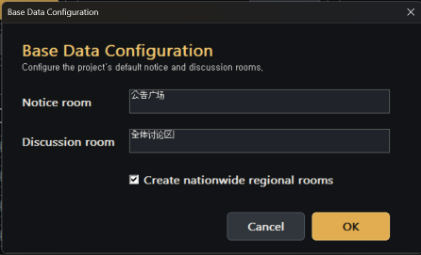
图 11. 基础数据设置
Indivitech 的基本系统会自动创建两种默认空间。
其中一个是用于发布公告信息的空间,另一个是所有登录系统的用户都可以参与的公共讨论空间。
这两个默认空间所需要的数据由系统自动创建。
在实际项目中是否使用这些默认空间,可以由系统开发者自行决定。即使已经创建了这些基础数据,但实际项目不使用相应功能,也不会对系统的正常运行产生较大影响。
此外,系统还提供 “创建全国各地讨论区” 复选框,该功能属于可选功能。
例如,在歌手粉丝俱乐部系统中,全国各个地区的粉丝可能需要分别参与各自地区的讨论,因此系统提供了自动创建各地区讨论区的功能。
如果项目不需要地区讨论区,只需取消该选项即可。
基础数据设置完成后,**第 6 阶段“HTML 传输”**项目将被激活。
图 12 展示了 HTML 传输项目处于激活状态时的界面。

图 12. HTML 传输
点击 HTML 传输项目中的 “部署” 按钮后,当前项目中登记的 HTML 源代码将被传输到服务器。
这些 HTML 不仅用于实际的 Web 服务,同时也是构成 Indivitech 系统不同运行环境中通用 UI 和功能的重要组成部分。
在项目开发过程中,如果使用 AI 或开发工具修改了 HTML,则必须将修改后的 HTML 再次传输到服务器。
在这种情况下,可以再次执行第 6 阶段 HTML 传输中的 “部署” 功能,或者使用当前状态下提供的更新功能,将最新的 HTML 内容应用到服务器。
第 6 阶段 HTML 传输完成后,最后一个阶段——上传设置将被激活。
图 13 展示了第 6 阶段完成后,上传设置项目被激活的界面。

图 13. 上传设置
对于一般项目而言,上传设置通常不需要进行修改。
但是,如果某个特殊项目需要将图片、视频、文档等数据保存到默认存储区域以外的其他服务器区域,则可以使用该功能修改文件的上传路径。
如果需要使用单独的服务器存储区域,则必须首先由开发总部为该项目分配相应的服务器空间,然后根据分配的信息设置上传路径。
对于普通项目,直接使用系统默认的上传设置即可,无需进行修改。
在这一阶段点击 “部署” 按钮完成上传设置后,该项目的全部 7 个设置与运行阶段即全部完成。
图 14 展示了所有阶段均已完成,并且各阶段状态指示均已激活后的界面。

图 14. 所有设置与运行阶段完成后的界面
当系统达到图 14 所示的状态时,表示该项目的基本系统已经处于激活状态。
从此时开始,即可访问项目的基本网站。
通过 Indivitech 系统主界面上方 “地址” 项目中显示的 Web 地址进行访问,即可直接通过 Web 浏览器查看当前已经开发完成的系统。
此后,可以继续编译 Android 应用程序和 PC 程序,并根据项目需要增加新的功能、修改现有功能,不并完善整个项目。
为了有效地使用 AI,首先必须向 AI 提供完成工作所需要的背景信息。这些信息越准确,AI 就越能够准确地完成任务。
为了让 AI 了解本系统,首先需要向 AI 提供以下三个源代码包:
• Android 源代码
• C 服务器源代码
• HTML 源代码在“项目软件包(Project Package)”窗口中,点击各项目的“下载 ZIP(Download ZIP)”按钮,即可下载相应的文件。
将下载的 ZIP 文件添加到 AI 的消息发送窗口,然后向 AI 提供以下说明。
【发送给 AI 的说明】本系统按照以下结构运行:HTML 通过桥接接口当 Android 应用程序进行通信,Android 应用程序再通过服务器套接字连接到 C 服务器。
HTML 负责显示用户界面,C 服务器负责数据的存储和管理。
Android 应用程序是连接 HTML 与 C 服务器的中间系统。同时,它还负责处理必须由设备提供的功能,例如选择和上传照片、视频及文档,获取 GPS 位置信息,扫描二维码,以及调用其他设备专用功能。
请检查源代码,并确认你已经理解本系统的结构。
图 15 展示了向 AI 说明系统基本结构的示例。
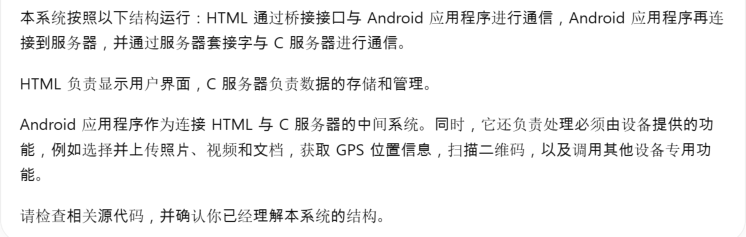
图 15 向 AI 说明系统基本结构的界面
要求 AI 执行开发工作时,必须向它提供准确的信息。只有 AI 清楚地理解系统结构,才能正确地修改相应的源代码。
请附上 Android 源代码 ZIP 文件、C 服务器源代码 ZIP 文件和 HTML 源代码 ZIP 文件,然后加入上述说明发送给 AI。
AI 的回答可能会有所不同。最重要的是确保 AI 正确理解本系统的结构。
本系统使用 Android、Windows PC、iPhone 和 WebSocket 作为中间系统。
在上一节中,已经向 AI 说明了 Android 系统的结构。下一步需要向 AI提供 Windows PC 程序的相关信息。
请附上 PC 源代码 ZIP 文件,并向 AI 提供以下说明。
【发送给 AI 的说明】除了 Android 应用程序之外,本系统还包含一个作为中间系统运行的 Windows PC 程序。
请检查 PC 源代码,并确认 PC 程序在整个系统中的结构和作用。
图 16 向 AI 发送 PC 源代码 ZIP 文件
AI 的回答可能会有所不同。最重要的是确保 AI 理解 PC 程序的结构和作用。
AI 理解这一结构后,在添加新功能时,就会知道 PC 源代码可能也需要进行相应修改。例如,AI 可能会要求你附上 PC 源代码 ZIP 文件,以便同时修改 PC 程序中的相关功能。
如果不提供 PC 源代码 ZIP 文件,AI 可能不知道本系统中还存在 PC 程序,因此无法修改 PC 源代码。
图 17 展示了 AI 识别并说明整个系统结构的示例。当 AI 能够正确说明整个系统结构时,就表示 AI
已经做好了协助开发 Indivitech 系统的准备。
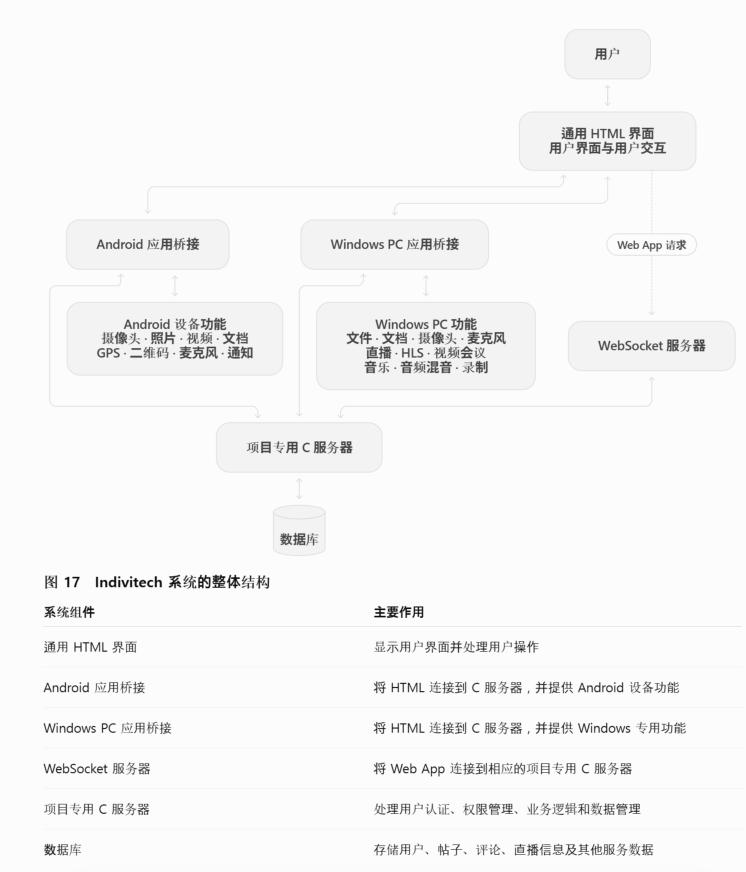
图 17 AI 正确理解 Indivitech 系统结构后的回答示例
本系统也可以在网页环境中运行。在本手册中,将这种运行方式称为“Web App(网页应用)”。
当系统在网页浏览器中运行时,HTML 首先连接到 WebSocket 服务器,然后 WebSocket 服务器再连接到相应项目专用 C 服务器的套接字。
WebSocket 服务器不包含在开发工具中。
所有新开发的服务器端功能都必须在 C 服务器中实现。与 C 服务器通信时,通过 grade 值和 cmd 编号指定需要执行的功能。
HTML 使用的桥接函数是 viewinfo()。
例如:
viewinfo("serverconnect</>grade=5&cmd=24&...");HTML 发送该命令后,Android 应用程序和 Windows PC 程序将请求转发给 C 服务器。
Web App 也使用相同的命令格式。Web App 的请求通过 WebSocket 服务器发送。WebSocket 服务器会自动识别目标项目,将请求转发到相应项目的 C 服务器套接字。
因此,添加新功能时必须遵守以下规则:
• viewinfo() 命令必须使用 serverconnect。
• 服务器的 grade 必须始终使用 grade=5。
• cmd 必须使用一个尚未被其他功能占用的编号。
• 新的服务器端功能必须在 grade5.c 中实现。
• 不需要向 AI 提供 WebSocket 源代码,也不需要让 AI 修改 WebSocket 源代码。
必须向 AI 清楚地说明这一系统结构。
【发送给 AI 的说明】当我们的程序在网页环境中运行时,HTML 先连接到 WebSocket 服务器,然后 WebSocket 服务器再连接到相应项目专用 C 服务器的套接字。
添加新功能时,请使用以下结构:
viewinfo("serverconnect</>grade=5&cmd=command_number&...");WebSocket 服务器会自动识别该请求,并将其转发到相应的 C 服务器。因此,你不需要检查或修改WebSocket 源代码。
添加到 C 服务器的所有新功能都必须使用 grade=5。请为每个新功能分配一个尚未使用的 cmd 编号,并在 grade5.c 中实现相应的处理代码。
图 18 展示了 AI 确认已经理解 WebSocket 结构的回答示例。
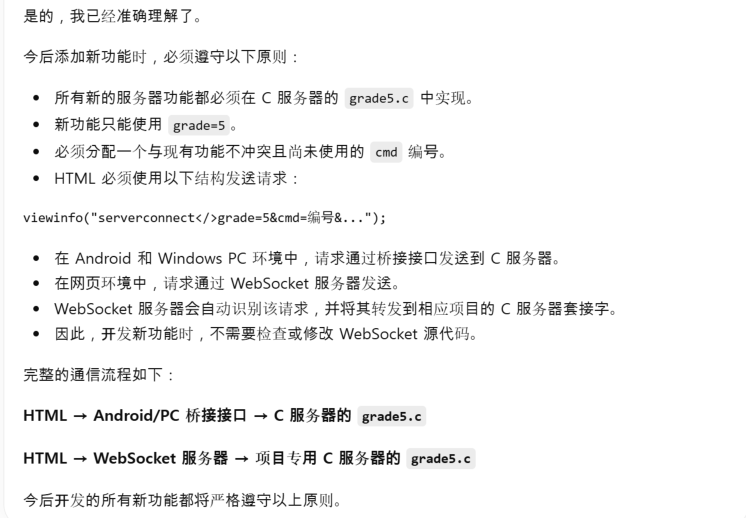
图 18 AI 正确理解 WebSocket 结构后的回答示例
完成以上步骤后,AI 将能够理解 Indivitech 系统的整体结构,并做好协助升级和扩展系统的准备。
Indivitech 系统也是一个利用 AI 辅助开发的系统。它不会直接应用通用 AI 生成的源代码,而是将源代码进行分析,根据 Indivitech 系统的结构进行调整和转换,然后再部署到服务器。
在前面的章节中,我们已经向通用 AI 说明了 Indivitech 系统的整体结构。
从现在开始,只需要明确告诉 AI 想要修改哪些内容,以及希望在系统中添加哪些新功能即可。
例如,如果想要修改主界面的设计,可以按照以下方式询问 AI。
【发送给 AI 的说明】请将主界面修改成柔和、自然的绿色粉彩风格。
要进行这项修改,需要哪些 ZIP 文件?
我目前有 Android 源代码、PC 源代码、C 服务器源代码和 HTML 源代码 ZIP 文件。
AI 通常会给出类似以下内容的回答。
【AI 回答】好的。这项工作只涉及界面设计,因此只需要提供 HTML 源代码 ZIP 文件。
向 AI 添加 HTML 源代码 ZIP 文件时,必须明确提供以下说明。
【发送给 AI 的请求】请修改所附 HTML ZIP 文件中的 HTML 文件。
请将修改后的文件重新放入原 ZIP 文件相同的文件夹结构中,然后将修改后的完整 HTML 源代码压缩成一个 ZIP 文件,并将整个 ZIP 文件提供给我。
我必须获得完整的 ZIP 文件,才能使用 Indivitech 工具升级项目。
之所以需要提出上述要求,是因为修改后的文件必须保留在原 ZIP 文件相同的文件夹结构中。
将 AI 提供的修改版 ZIP 文件拖放到 Indivitech 工具的相应项目中,即可把新的源代码安装到项目中。
Indivitech 工具并不是按照接收单个 HTML、C 或 C++ 文件的方式设计的。它只能接收包含完整源代码包的 ZIP 文件。
因此,即使只修改了一个文件,也必须获得包含全部修改后源代码的完整 ZIP 文件。
如果要开发新功能,而不是仅仅修改界面设计,首先要向 AI 说明所需功能,并询问需要提供哪些 ZIP 文件。
例如,可以按照以下方式要求 AI 添加问卷调查功能。
【发送给 AI 的请求】用户在主界面点击“问卷调查”按钮后,需要显示问卷,并允许用户参与调查。
还需要建立数据库表,用于保存问卷内容和调查结果。
此外,请在“设置”界面中添加管理功能,使管理员能够登记和管理问卷标题、问题及选项。
开发这项功能需要哪些 ZIP 文件?
AI 通常会给出类似以下内容的回答。
【AI 回答】明白了。要创建问卷调查功能,需要建立数据库表,用于保存问卷内容和用户参与结果。
我会提供所需的 CREATE TABLE SQL 语句,请使用 Indivitech 工具执行该语句。
另外,请附上 HTML 源代码 ZIP 文件和 C 服务器源代码 ZIP 文件。HTML 将使用 serverconnect 方式发送请求。新的服务器功能将在 C 服务器的 grade5.c 中实现,并使用 grade=5 和一个尚未被占用的cmd 编号。
如果新功能需要使用独立的数据库表,则必须先创建该表。
在 Indivitech 工具的顶部菜单中选择 数据库 → SQL,即可执行 SQL 语句。
图 19 展示了在 Indivitech 工具的数据库菜单中选择 SQL 项目后出现的界面。
开发新功能时,经常需要创建和保存数据。
HTML 主要负责用户输入和查询数据的界面。用户通过 HTML 输入的数据,会经过 Android 应用程序、Windows PC 程序或 WebSocket 服务器传送到 C 服务器。
C 服务器必须将接收到的数据保存到数据库中。因此,必须事先准备能够保存这些数据的存储结构。这种数据存储结构通常称为数据库的表(Table)。
如果新功能需要保存新的数据,必须按照以下方式询问 AI。
【发送给 AI 的说明】我需要保存这次新增功能所产生的数据。
请为该功能设计合适的数据库表结构,并提供创建该表所需的 SQL 语句。
AI 并根据该功能提供合适的数据库表结构和 SQL 语句。
将 AI 提供的 SQL 语句输入图 19 所示的 SQL 查询输入框,然后点击执行按钮。SQL 语句将被发送到服务器,并在当前项目的数据库中创建新的数据表。
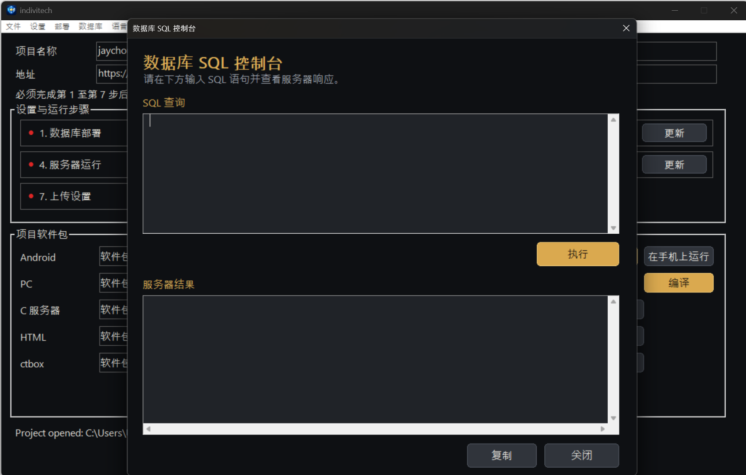
图 19 SQL 执行界面
Indivitech 系统的新功能通常可以使用以下结构进行开发:
HTML
→ viewinfo("serverconnect</>grade=5&cmd=命令编号&...")
→ C 服务器的 grade5.c大多数常规功能只需要修改以下两个源代码包即可实现:
• HTML 源代码 ZIP 文件
• C 服务器源代码 ZIP 文件如有需要,还可以添加新的数据库表。
对于这类功能,Android 应用程序或 Windows PC 程序可以将现有的 serverconnect 请求转发到 C 服务器,因此不需要修改中间系统。
如果修改了 HTML 源代码,请在 Indivitech 工具中更新 6. HTML 传输项目。
如果修改了 C 服务器源代码,请按照以下顺序应用更改:
1. 更新 3. 服务器部署项目。
2. 通过 4. 服务器运行项目重新启动服务器。
但是,根据新功能的具体特性,有时也可能需要修改 Android 源代码或 PC 源代码。
例如,以下功能可能需要修改 Android 应用程序或 Windows PC 程序:
• 使用摄像头或麦克风
• 选择照片、视频或文档
• 获取 GPS 位置信息
• 扫描二维码
• 选择 Windows 文件
• 直播传输及录制
• 视频会议
• 必须由操作系统直接提供的功能因此,在添加新功能之前,建议按照以下方式询问 AI。
【发送给 AI 的说明】添加这项功能需要修改系统的哪些部分?
能否只修改 HTML 源代码和 C 服务器源代码来实现这项功能?
如果还需要修改 Android 源代码或 PC 源代码,请说明原因,并告诉我需要提供哪些 ZIP 文件。
在条件允许的情况下,最好只修改 HTML 源代码和 C 服务器源代码。这样就不需要重新编译和发布Android 应用程序或 Windows PC 程序。
但是,如果仅通过 HTML 和 C 服务器无法实现该功能,就必须修改包括 Android 源代码和 PC 源代码在内的所有相关源代码包。
在这种情况下,需要将包含全部修改内容的完整源代码 ZIP 文件重新上传到 Indivitech 工具,然后重新编译并发布 Android 应用程序、Windows PC 程序或其他所需的可执行文件。
使用 Indivitech 工具之前,计算机中必须安装以下三个程序:
• Visual Studio 2022 或更高版本o 必须安装 C++ 开发工具和 C++ 编译器。
• 最新版 Android Studio
• Inno Setup Compiler以上三个程序均可免费使用。可以向 AI 询问官方下载地址和安装方法。
Indivitech 使用这三个程序提供的编译和安装包制作引擎。
Android 应用程序使用 Android Studio 的编译引擎进行编译,C 服务器和 Windows PC 程序使用 Visual Studio 的 C/C++ 编译器进行编译,Windows 安装程序则使用 Inno Setup Compiler 制作。
用户不需要直接运行 Visual Studio、Android Studio 或 Inno Setup Compiler。Indivitech 工具会自动连接这些程序的编译引擎,并执行所需的操作。
因此,在 Indivitech 工具中单击 “编译” 按钮后,所选源代码将自动进行编译,并根据编译类型生成 APK、AAB、EXE 或 Setup 文件。
如需编译 Android 应用程序,请单击“项目程序包”窗口中 Android 项目的 “编译” 按钮。
在图 20所示的界面中,单击金色的 “编译” 按钮,即可编译相应的 Android 源代码。
图 20 Android 程序包界面
如果希望将编译完成的应用程序直接安装到智能手机上运行,请在编译完成后单击 “在智能手机上运行”
按钮。
使用此功能之前,必须启用智能手机的 “开发者选项” 和 “USB 调试” 功能。不同型号的手机启用开发者模式的方法可能有所不同,可以向 AI 询问具体操作方法。
如需更改 Android 应用程序的图标,请选择 “设置 → Android 图标”,然后上传希望使用的应用程序图标图片。
如需更改智能手机上显示的应用名称,请选择 “设置 → Android 名称”,然后输入所需的名称。
如果希望将编译完成的 APK 文件上传到服务器,供用户下载,请选择 “发布 → Android 发布”。
APK 文件上传完成后,系统会自动登记该文件的下载地址。如需查看已登记的下载地址,请选择 “发布 →Android 地址”。
Android 应用程序经过修改并作为新版本发布时,其版本号必须高于以前发布的版本号。
如需提高应用程序的版本号,请选择 “发布 → 登记 Android 版本”。提高版本号后,重新编译并发布应用程序。
使用旧版本应用程序的用户将会收到新版本提示,并可根据提示下载更新文件。
当 Android 应用程序上传到 Google Play 商店时,需要使用 AAB 文件,而不是 APK 文件。
如需创建 AAB 文件,请选择 “发布 → 创建 AAB”。
修改 PC 源代码后,如需进行编译,请单击“项目程序包”窗口中 PC 项目的 “编译” 按钮。
图 21显示了“项目程序包”窗口中的 PC 项目。
图 21 PC 程序包界面
PC 程序编译完成后,将生成以项目 ID 命名的主执行文件,以及程序运行所需的附属 DLL 和 EXE 文件。
例如,项目 ID 为 hongja 时,主执行文件将以 hongja.exe 等形式生成。
如需更改 PC 程序的图标,请选择 “设置 → PC 图标”,然后上传希望使用的图标图片。
PC 程序当 Android 应用程序一样,也使用版本号进行管理。修改 PC 程序后,应提高版本号,然后重新进行编译。
发布 PC 程序时,需要创建供用户安装的 Setup 安装文件。
选择 “发布 → 创建 PC Setup 文件” 后,系统会使用 Inno Setup Compiler 自动制作 Setup 文件。制作完成的 Setup 文件将保存在 PC 中,同时上传到服务器。
如需查看上传到服务器的 PC Setup 文件下载地址,请选择 “发布 → 查看 PC 文件地址”。
完成全部七个设置和运行步骤后,系统会自动创建网页,用户可以通过已登记的网址进行访问。
默认情况下,用户首次访问网站时打开的 HTML 文件是 login.html。
如果希望非会员也可以在登录前先查看主界面,可以将初始文件更改为 main.html。
初始文件可以通过 “设置 → 初始文件” 进行修改。
只能将以下两个文件指定为初始文件:
• main.html
• index.html请勿将其他文件名设置为初始文件。
注册号 10-2869666
查看韩国注册专利 PDF ↗申请号 19/564,935
查看美国申请文件 PDF ↗